To configure a WhatsApp template in Shopify Flow, choose an event supplying the required data, add WhatFlow Business API’s Send WhatsApp Template action and map the intended recipient. Use the exact approved template name, language and matching variables. Review missing values and repeated events while inactive; an accepted Flow step is not proof of delivery or reading.
Key takeaways
Choose the event around what the message can truthfully establish.
Map only the variables required by the actual approved template.
Keep request acceptance, delivery and reading as separate outcomes.
A message should follow the event the customer cares about
An order being created, a fulfillment being recorded and a parcel being delivered are different events. Start a messaging workflow from the event that actually supports the statement in your message. If the template promises tracking details, an order-created event may be too early to supply them.
WhatFlow Business API adds Send WhatsApp Template to Shopify Flow, alongside text, interactive and media actions. The configuration happens in Shopify’s visual editor. You still need to choose an appropriate event, an approved template and the correct customer data; visual configuration does not remove those decisions.
Step 1: prepare the template before building the workflow
Create the intended message in WhatFlow’s template tools and wait for the required approval. Check the exact template name, language, header type, body variables and any URL-button variable. A variable slot expecting an order reference should not receive a phone number simply because both values are available in Flow.
Keep the wording accurate for the event. A fulfillment notification can explain that an order has been fulfilled when the store’s fulfillment event supports that statement. It should not claim that the carrier delivered the parcel unless the trigger and data establish delivery.
Step 2: choose a trigger with the data your message requires
In an inactive Flow workflow, choose a supported Shopify or installed-app trigger that supplies the relevant order, customer and event data. Inspect its available variables before adding conditions. For a fulfillment-oriented notification, use an appropriate fulfillment event and check that the required tracking values exist when it runs.
An order can have several fulfillments. Decide whether you want a message per fulfillment or a message only after a defined overall state. That business rule belongs in the workflow; otherwise a split shipment can produce more messages than your customer expects.
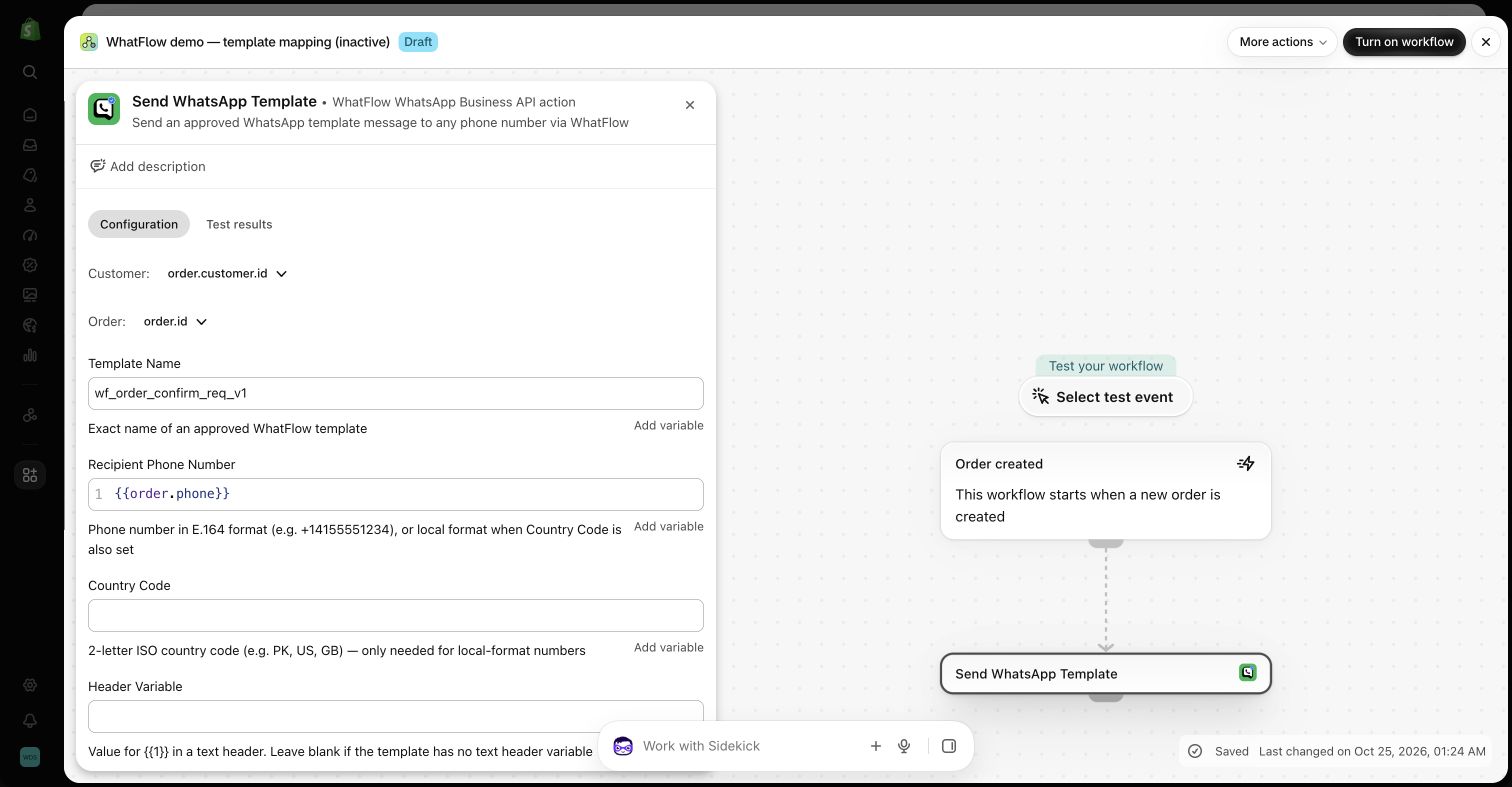
WhatFlow template action in the demo Flow editor. Template names and variable choices must match the approved template in your own account. Source
The configuration shown in our screenshots
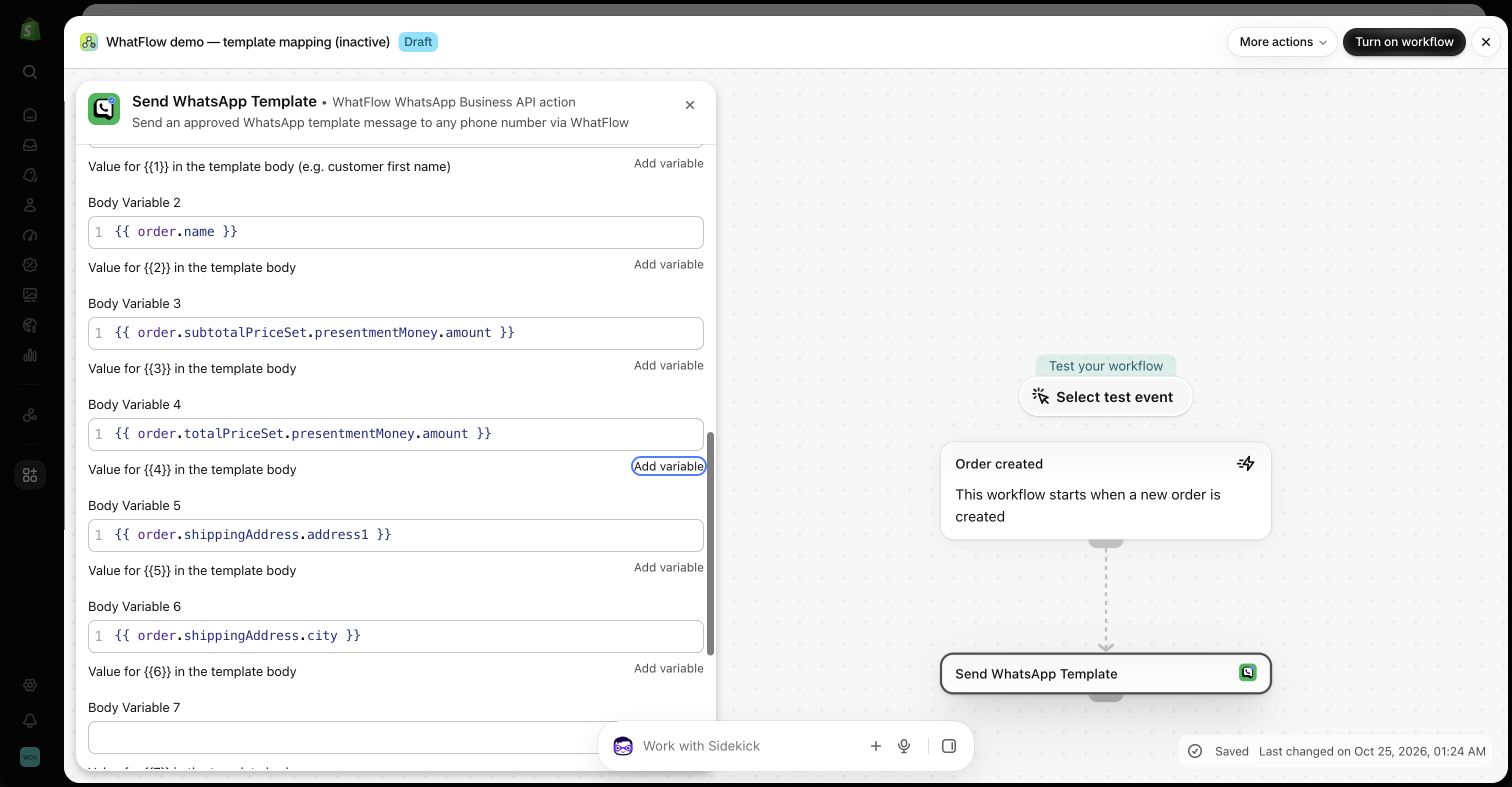
The demo uses Shopify’s Order created trigger with the approved utility template wf_order_confirm_req_v1. The recipient is order.phone, and Shopify supplies order.id and order.customer.id as context. The template was checked in the demo app’s template preview; its six body placeholders represent the name, order number, subtotal, total, address and city.
We mapped those placeholders to the shipping first name, order name, presentment-currency subtotal and total amounts, shipping address line and city. The following screenshot shows the body inputs. Add the required currency formatting, missing-phone and missing-address checks, and messaging-permission rules for your own store. This is an inactive field-mapping demonstration, not a complete production notification policy. No message was sent, and existing WhatFlow order notifications should be checked for overlap before you enable an equivalent Flow.
Body variables in the inactive order-confirmation demo. These are field mappings, not customer data or proof of sending. Review currency formatting, missing values and permissions before activation. Source
Step 3: add Send WhatsApp Template and map the recipient
Select WhatFlow and Send WhatsApp Template. Use the exact approved template name. Choose a recipient variable that actually contains the intended customer’s phone number, and apply an appropriate condition when the number or required permission is absent. A test number typed into the editor must not remain as the recipient of every production event.
WhatFlow accepts an international-format number or a local number with the corresponding country code where the action supports it. Do not guess the country from a name or language. Use the data available to your store and confirm the resulting number with a controlled test.
Step 4: match each variable to the approved message
The template action exposes header inputs where relevant, body parameters, a URL-button variable and optional order and customer references. Map the supplied fields to the actual approved structure rather than filling every available input. A template with two body placeholders does not need seven unrelated values.
Retain order and customer references when the event and action support them. Those references help an order-aware conversation carry useful context for later handling. Test replies as well as the outbound message, especially when a buyer can have more than one active order.
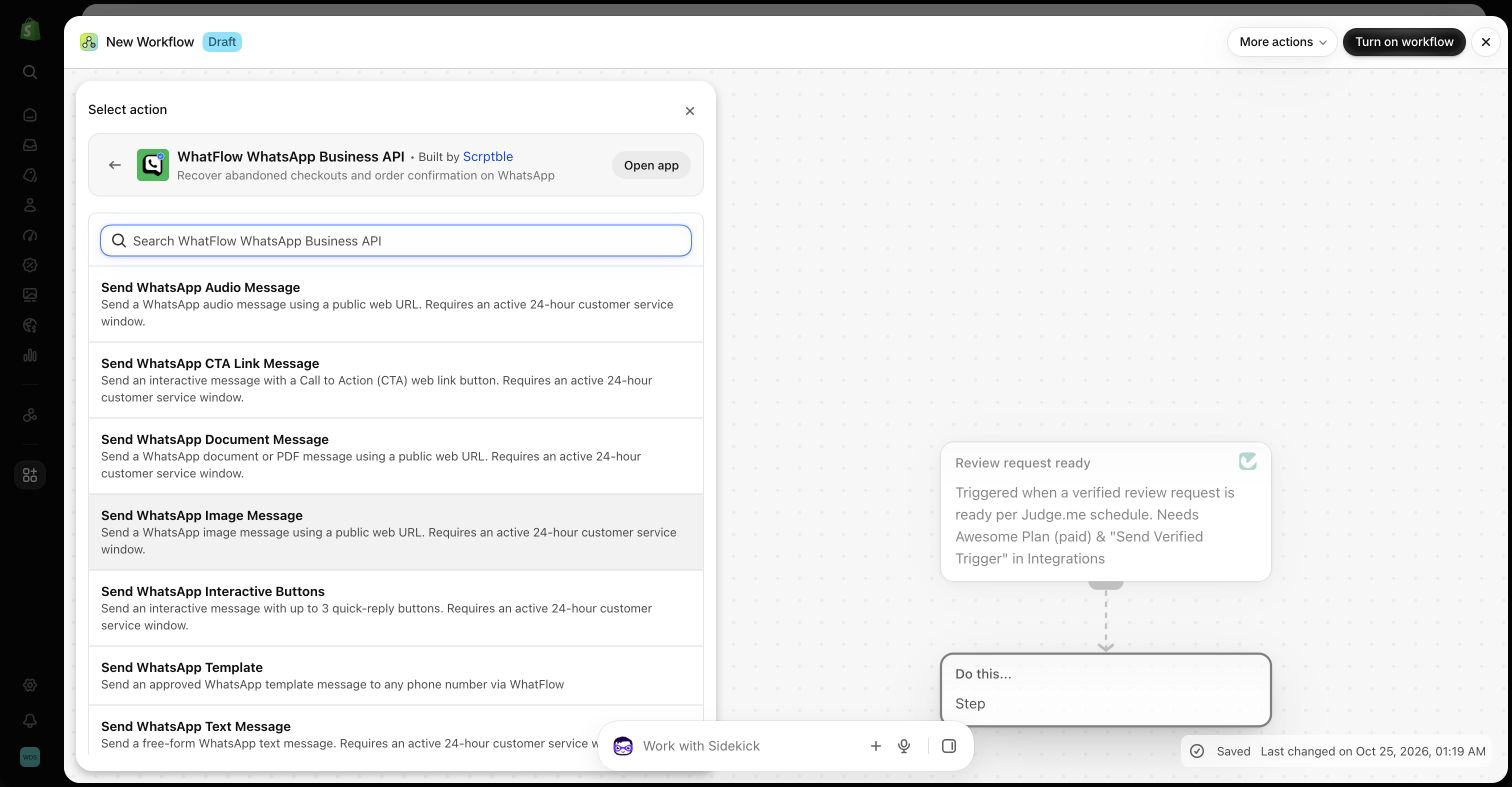
WhatFlow message actions available in the demo store’s Shopify Flow editor. Message type and customer-service-window rules still apply. Source
When to choose the other seven actions
An incoming conversation may be better served by a short text, up to three interactive buttons, a CTA link, or an image, video, audio or document message. These are separate WhatFlow actions. Choose the message format that helps the buyer complete the next step, rather than sending a large block of text for every situation.
Free-form text, interactive, CTA and separate media messages require an active customer-service window. Outside that window, use an eligible approved template. Media actions need a supported, accessible direct media URL; a received Meta media ID is not interchangeable with that URL.
A successful Flow step is not a delivery receipt
Review both the Flow run and the WhatFlow conversation when testing. A message accepted for sending is not the same as a message delivered to the recipient, and delivery is not the same as a read receipt. Do not interpret a green workflow result as proof that the customer saw the message.
Check missing variables, absent phone numbers, an unapproved template and duplicate events as part of your test plan. If a message needs review after an uncertain send outcome, avoid blindly triggering another copy. Make the staff recovery process explicit before activating a high-volume event.
WhatFlow Business API provides feature access across plans, including Free, and has no inbox seat fees. Plans differ by message allowances and rates. That lets a store start with one valuable notification without buying a higher feature tier just to access the workflow tools.
WhatsApp’s applicable messaging charges and Shopify or connected-app costs still matter. A narrow transactional notification is usually easier to budget and evaluate than an assortment of loosely defined messages. Start with a controlled test, inspect the actual outcome and expand from there.
Compare the approved preview with each mapped input
For the inactive six-placeholder order-confirmation demo, keep the approved preview beside the Flow editor and label each input by its meaning: name, order number, subtotal, total, address and city. Check currency formatting and missing-value handling at the same time. The sample template name belongs to the documented demo; use the approved structure from your own account.
Before you put this into practice
Confirm the actual template approval, name and language.
Choose a recipient field and handle missing phone data.
Match every input to its placeholder and formatting needs.
Check duplicate notifications and split-fulfillment behavior.
Keep the sample inactive until configuration review is complete.
WhatFlow Business API includes all features across plans, including Free, with no inbox seat fees. Choose your plan around messaging allowances and rates.
Safwan Adnan is co-founder and CEO of WhatFlow. This guide is published by WhatFlow and includes its product where relevant. Worked examples are illustrative unless a caption identifies an actual demo-store configuration; they are not merchant performance results.
No API code is needed for the standard examples using the installed WhatFlow Flow triggers and actions. You choose steps, conditions and supplied variables in Shopify Flow. More advanced transformations or custom integrations can require additional technical work.
Is Shopify Flow included in every Shopify plan?
Shopify currently makes Flow available on Basic, Grow, Advanced and Plus. Some Flow features have additional plan restrictions. The installed-app WhatFlow examples do not require building your own HTTP request action.
Does WhatFlow feature-gate its Flow integration?
WhatFlow Business API provides all features across its plans, including Free. Plans differ by messaging allowances and rates, and the team inbox has no seat fees. Shopify and other connected apps can have their own plan requirements and charges.
Can I send any WhatsApp format outside the customer-service window?
No. The free-form text, interactive, CTA and separate media actions require an active customer-service window. Eligible business-initiated messages outside it use an approved template and must meet WhatsApp messaging requirements.
Does Flow success mean my customer received the message?
No. An accepted send request or completed workflow step is not a delivery or read receipt. Check the relevant messaging status and conversation rather than treating the workflow result as proof of delivery.
Official app identity and advertised Shopify Flow integration. Trigger and action descriptions were also checked against WhatFlow’s current extension definitions.