Build a WhatsApp automation visually by selecting a Shopify or WhatFlow Business API trigger, adding a condition and choosing a supported action in Shopify Flow. Match the event’s data to the intended outcome and message rules. Start with an inactive, narrow workflow; inspect logic and field mapping before any separate controlled check of an actual external action.
Key takeaways
A trigger supplies context, a condition selects a branch and an action performs the task.
Choose order-aware events for order work and eligible formats for messages.
All WhatFlow Business API plans include features and no inbox seat fees; allowances and rates differ.
A customer reply can be the beginning of a workflow
A customer taps a button in WhatsApp. Instead of asking someone to copy that answer into Shopify, the store can let the response start a workflow: check what the buyer selected, add the appropriate order tag and bring a human into the conversation when the answer needs attention. That is the useful promise of WhatFlow’s Shopify Flow integration.
I’m Safwan Adnan, co-founder and CEO of WhatFlow. We built the integration so merchants can connect messaging with the rest of the store through Shopify’s own visual automation editor. For the standard workflows in this guide, you do not need to write an API request, maintain a webhook server or learn JSON. You choose the event, add the business condition and select an action.
These guides refer to WhatFlow WhatsApp Business API, our official Meta Cloud API app. The screenshots use a demo store and inactive example workflows. They illustrate configuration rather than measured revenue or delivery results.
Use Flow’s built-in test mode first to inspect the path and variable values. Shopify documents that this mode does not send notifications or change live store data, and external actions can show configuration previews instead of executing. A successful preview therefore checks logic and mapping; it is not proof of an actual WhatsApp send. Any end-to-end delivery check is a separate controlled exercise.
The three pieces: trigger, condition and action
A trigger starts the workflow when something happens. A condition asks a question about the event’s data. An action performs the selected task when the relevant branch is reached. Think of the process as a sentence: when this happens, if this is true, do that.
The visual editor lets you connect those steps and inspect each field. Shopify supplies store events and actions; installed apps can contribute their own. WhatFlow supplies events from WhatsApp and actions that send messages. That makes WhatsApp part of a wider store workflow rather than an isolated notification channel.
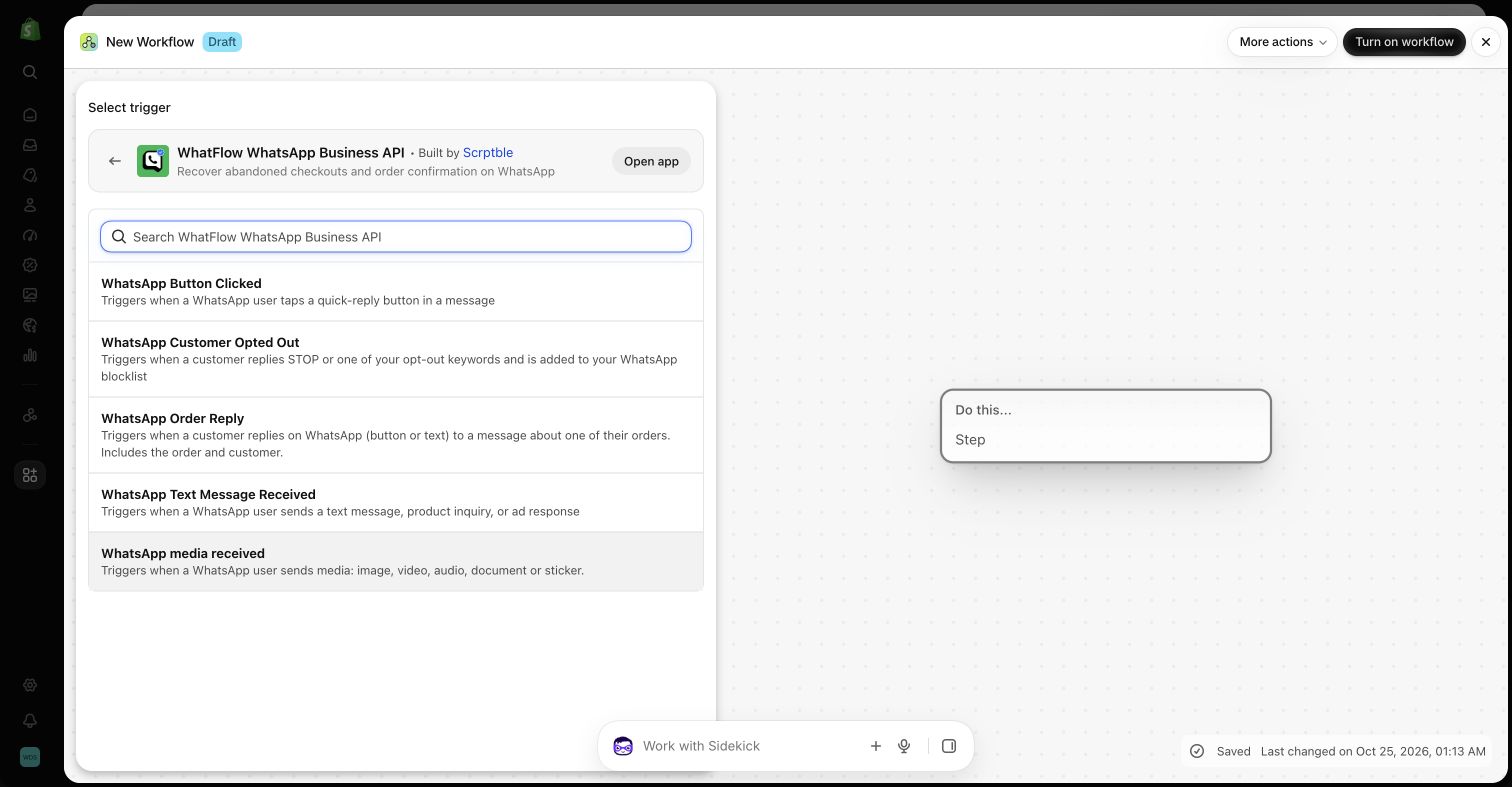
WhatFlow Business API in the Shopify Flow demo store: merchant-facing incoming-message triggers. This is a configuration screenshot, not evidence of a completed customer interaction. Source
Five incoming WhatFlow events to know
WhatsApp Text Message Received starts from an incoming text, product enquiry or supported ad-response context. It supplies fields such as Message Body and Sender Phone Number. A first useful recipe is to recognize a clear request and send a relevant reply.
WhatsApp Button Clicked starts from a quick-reply button tap. Its fields include the visible Button Text and the Button Payload. It is useful for intent routing, but a generic button event should not be treated as proof that the workflow has an identified Shopify order.
WhatsApp Order Reply is the order-specific option. It includes order and customer references as well as reply fields. Choose this when the next step needs to change an order tag or use order data, and test that the reply resolves to the intended order.
WhatsApp media received covers incoming images, videos, audio, documents and stickers. A store can distinguish an attachment from an ordinary text message and route it for attention. A received file is not automatically an approved claim, refund or proof of delivery.
WhatsApp Customer Opted Out represents an opt-out such as STOP that has been added to the WhatsApp blocklist. It is useful for coordinating other store processes around that preference. Do not turn the opt-out into a trigger for another promotional reply.
The lifecycle callback is not another customer event
The extension definitions also contain an internal lifecycle callback for Flow subscriptions. That supports the integration behind the scenes. It is not a sixth shopper-facing event to use as the start of a merchant workflow. The five triggers above are the useful incoming-message categories for the recipes in this series.
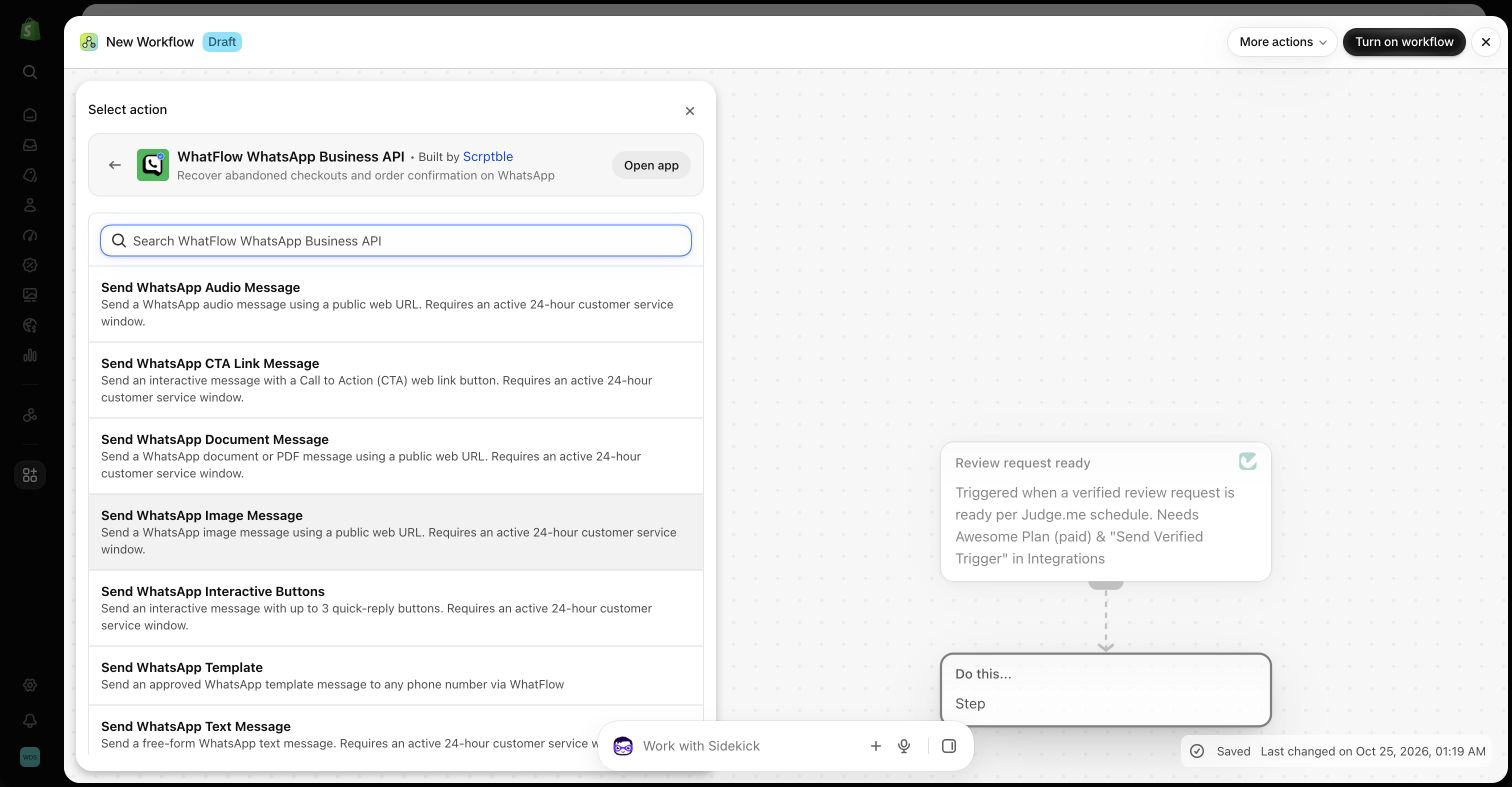
WhatFlow message actions available in the demo store’s Shopify Flow editor. Message type and customer-service-window rules still apply. Source
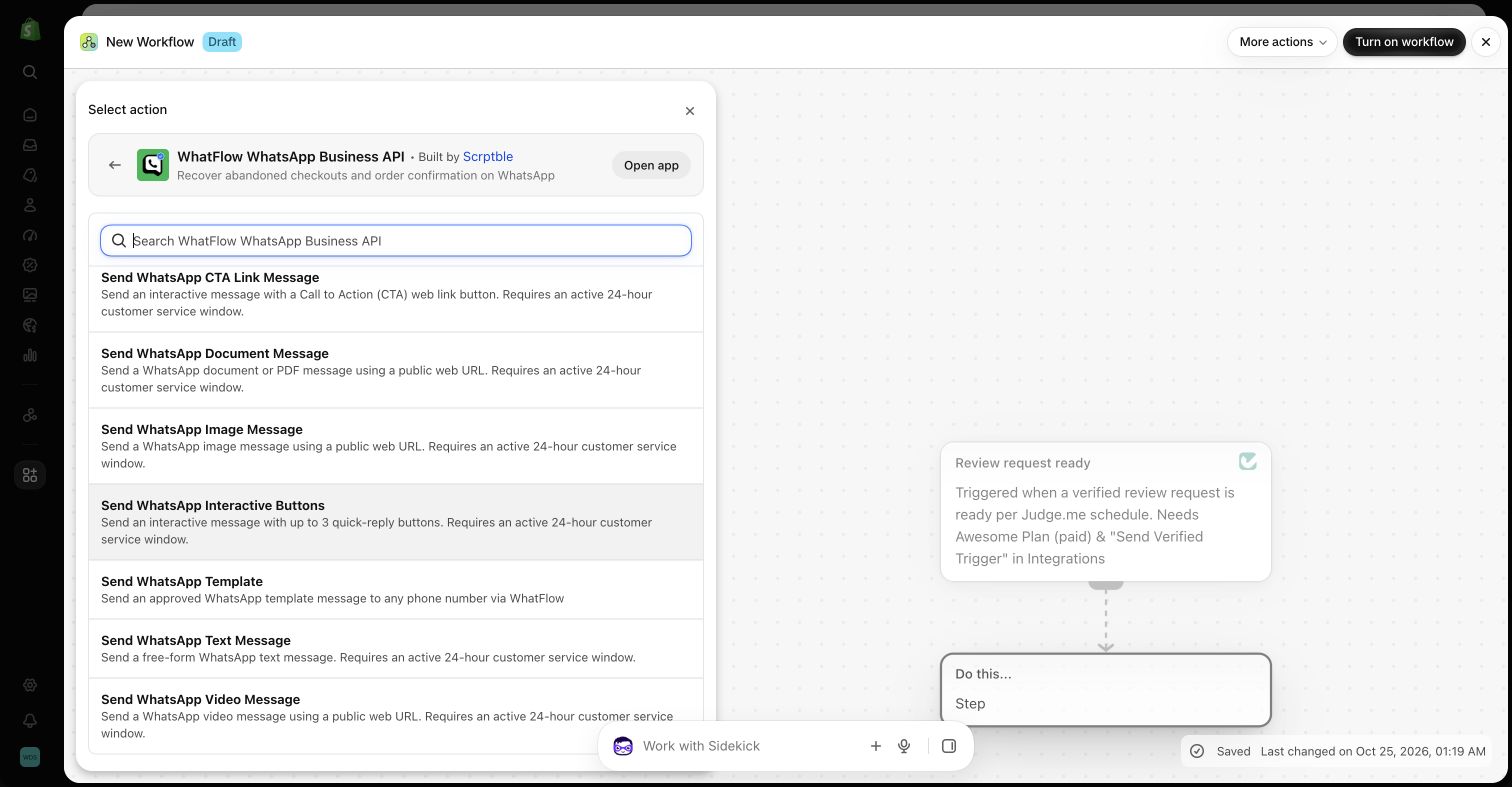
The rest of the message-action list in the actual Flow editor, including the text and video actions. Free-form actions require an active customer-service window. Source
Eight actions for sending the right message
WhatFlow provides Send WhatsApp Template, Send WhatsApp Text Message, Send WhatsApp Interactive Buttons, Send WhatsApp CTA Link Message, and separate image, video, audio and document message actions. Pick the action for the actual customer experience rather than defaulting to a long plain-text response.
Send WhatsApp Template uses the exact name of an approved template and the matching variable values. It is the starting point for eligible business-initiated messages outside an active customer-service window.
Free-form text, interactive buttons, CTA links and the separate media actions require an active WhatsApp customer-service window. The interactive-button action supports up to three quick-reply choices. Choosing a step in Flow does not remove the channel’s delivery requirements.
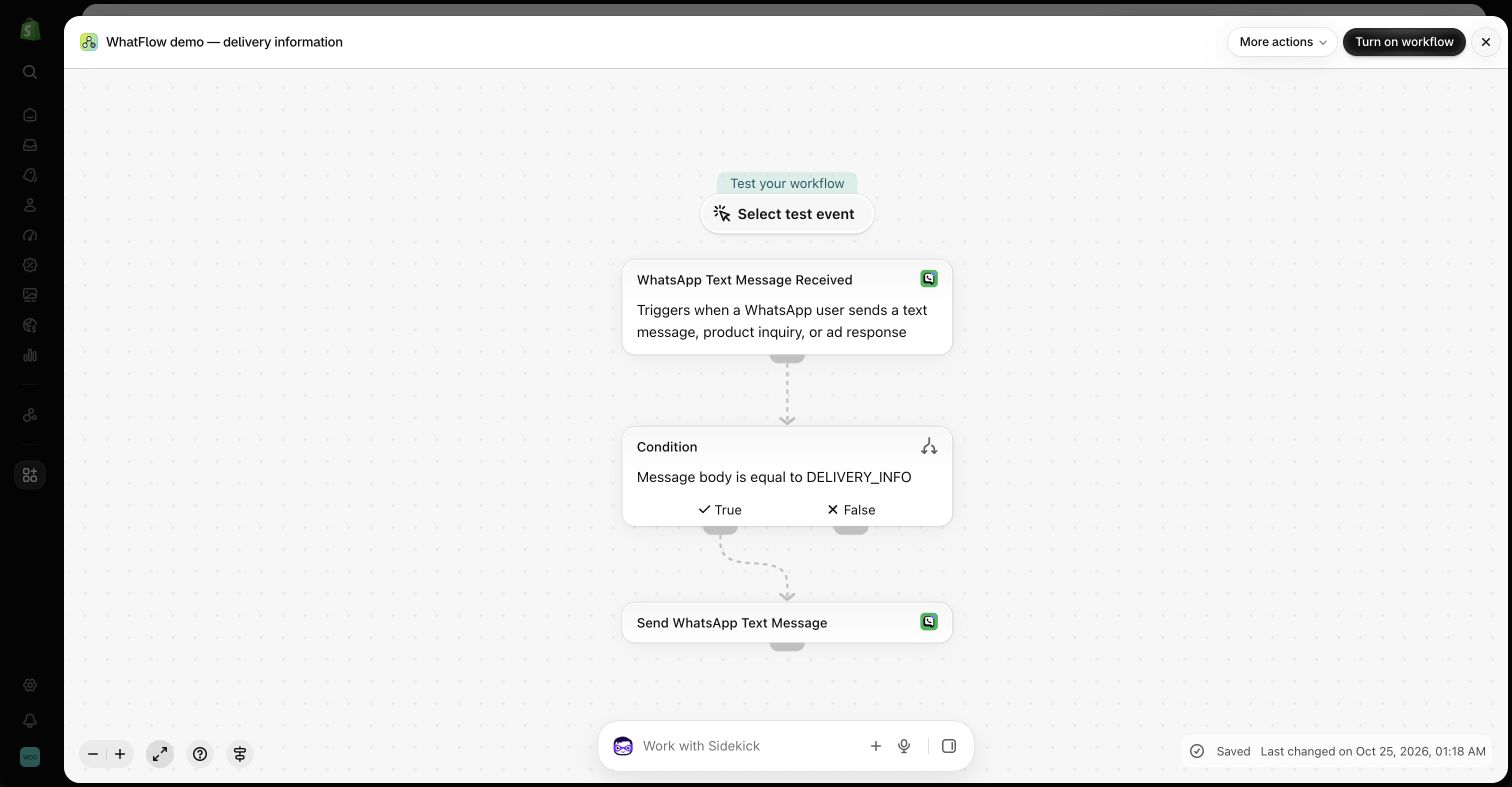
For a first exercise, choose an incoming text event and a narrow condition that identifies a request you actually receive. A test customer asking about delivery could receive a concise answer or a small choice of next steps. Use the trigger’s sender-number variable as the recipient rather than typing a fixed customer number into the action.
Then build an order-aware example separately. An order reply can lead to an order tag after the reply fields are checked. Separating an intent-routing exercise from an order operation makes it easier to see which data each trigger provides.
Inactive demo workflow: an incoming WhatsApp text message is evaluated before a response action. Review the condition and recipient mapping before enabling your own version. Source
Why this connects to the Shopify app ecosystem
The same workflow can combine compatible tasks from Shopify and installed apps. That creates many useful combinations without WhatFlow having to ship a separate bespoke integration for every possible business process.
There is an important boundary: an app must expose the required Flow trigger or action, be installed and configured, and provide the data the next step needs. Flow does not automatically expose every capability of every Shopify app. That still leaves a broad ecosystem of practical building blocks for nontechnical merchants.
You can also start with a plain-language Sidekick request
Shopify supports generating Flow workflows from a plain-language description in Sidekick on desktop. Describe the event, rule and outcome, then inspect the generated draft. If a WhatFlow step is missing or unsupported in the generated result, select that installed action manually in Flow rather than assuming the AI created an equivalent step.
Sidekick-generated workflows start inactive. Keep the draft that way until its trigger, branch, recipient and message are checked. The value is a faster first draft; responsibility for the final business rule remains with the merchant.
WhatFlow Business API includes its features across plans, including Free, with no team-inbox seat fees. You choose a plan based on messaging allowances and rates. Shopify Flow and any third-party apps still have their own availability and commercial terms, and applicable WhatsApp delivery charges remain separate.
Start with one workflow that removes an obvious manual handoff. Watch the first controlled tests, keep a human path for exceptions and only then add more branches. The strongest automation is one the person running the store can understand and maintain.
Choose the next recipe by the outcome you need
Use a short routing exercise when the aim is to recognize a question and prepare a relevant reply. Use the order-reply recipe when the aim is to record an answer against a specific order. Keep these as separate inactive drafts initially so the team can see which fields each trigger provides and avoid mistaking a sender number for an order reference.
Before you put this into practice
Write one event, one rule and one intended outcome.
Inspect the selected trigger’s actual fields.
Map the recipient or target order from the proper context.
Check missing data, repeats and a human exception path.
Record that built-in test previews do not prove delivery.
WhatFlow Business API includes all features across plans, including Free, with no inbox seat fees. Choose your plan around messaging allowances and rates.
Safwan Adnan is co-founder and CEO of WhatFlow. This guide is published by WhatFlow and includes its product where relevant. Worked examples are illustrative unless a caption identifies an actual demo-store configuration; they are not merchant performance results.
No API code is needed for the standard examples using the installed WhatFlow Flow triggers and actions. You choose steps, conditions and supplied variables in Shopify Flow. More advanced transformations or custom integrations can require additional technical work.
Is Shopify Flow included in every Shopify plan?
Shopify currently makes Flow available on Basic, Grow, Advanced and Plus. Some Flow features have additional plan restrictions. The installed-app WhatFlow examples do not require building your own HTTP request action.
Does WhatFlow feature-gate its Flow integration?
WhatFlow Business API provides all features across its plans, including Free. Plans differ by messaging allowances and rates, and the team inbox has no seat fees. Shopify and other connected apps can have their own plan requirements and charges.
Can a WhatsApp button reply update a Shopify order?
Yes, an order-aware workflow can use WhatsApp Order Reply, check the button or text response, and run a supported order action such as adding a tag. A generic WhatsApp Button Clicked event should not be assumed to contain a Shopify order reference.
Does WhatFlow work with literally every Shopify app through Flow?
It can be combined with compatible installed apps that expose the necessary Flow tasks and data. There is no blanket guarantee that every app or every app feature is available in Flow.
Official app identity and advertised Shopify Flow integration. Trigger and action descriptions were also checked against WhatFlow’s current extension definitions.