Use WhatFlow Business API’s WhatsApp Order Reply trigger when a customer’s response must update an identified Shopify order. Match the reply type and the configured button text or payload, then add a meaningful tag to the order supplied by that trigger. Keep nonmatching replies for review and test repeats and older messages without treating confirmation as automatic fulfillment authority.
Key takeaways
Use the order-specific trigger rather than a generic button event.
Match the actual configured answer before adding an order tag.
A confirmation tag does not itself authorize charging, refunding or fulfillment.
The useful outcome is the order decision
A customer tapping “Confirm order” is only half the job. The warehouse still needs to know what that answer means for the correct Shopify order. A practical workflow turns the response into an understandable store action, while giving staff a way to handle exceptions.
This recipe uses WhatFlow WhatsApp Business API and Shopify Flow. It is an order-reply workflow, not an instruction to fulfill, charge, cancel or refund an order automatically. The first outcome is deliberately modest: add a clear order tag after the intended confirmation response is matched.
Use WhatsApp Order Reply when the next action needs an order
Choose the WhatFlow trigger named WhatsApp Order Reply. Its extension supplies order and customer references together with Reply Type, Button Text, Button Payload and Message Body. Those references are the reason this trigger is appropriate for a Shopify order action.
Do not substitute the generic WhatsApp Button Clicked trigger merely because the buyer tapped a button. That event is useful for conversation routing, but its generic fields do not establish which Shopify order should be updated. If a workflow cannot identify the intended order, stop the order-changing branch and let a person investigate.
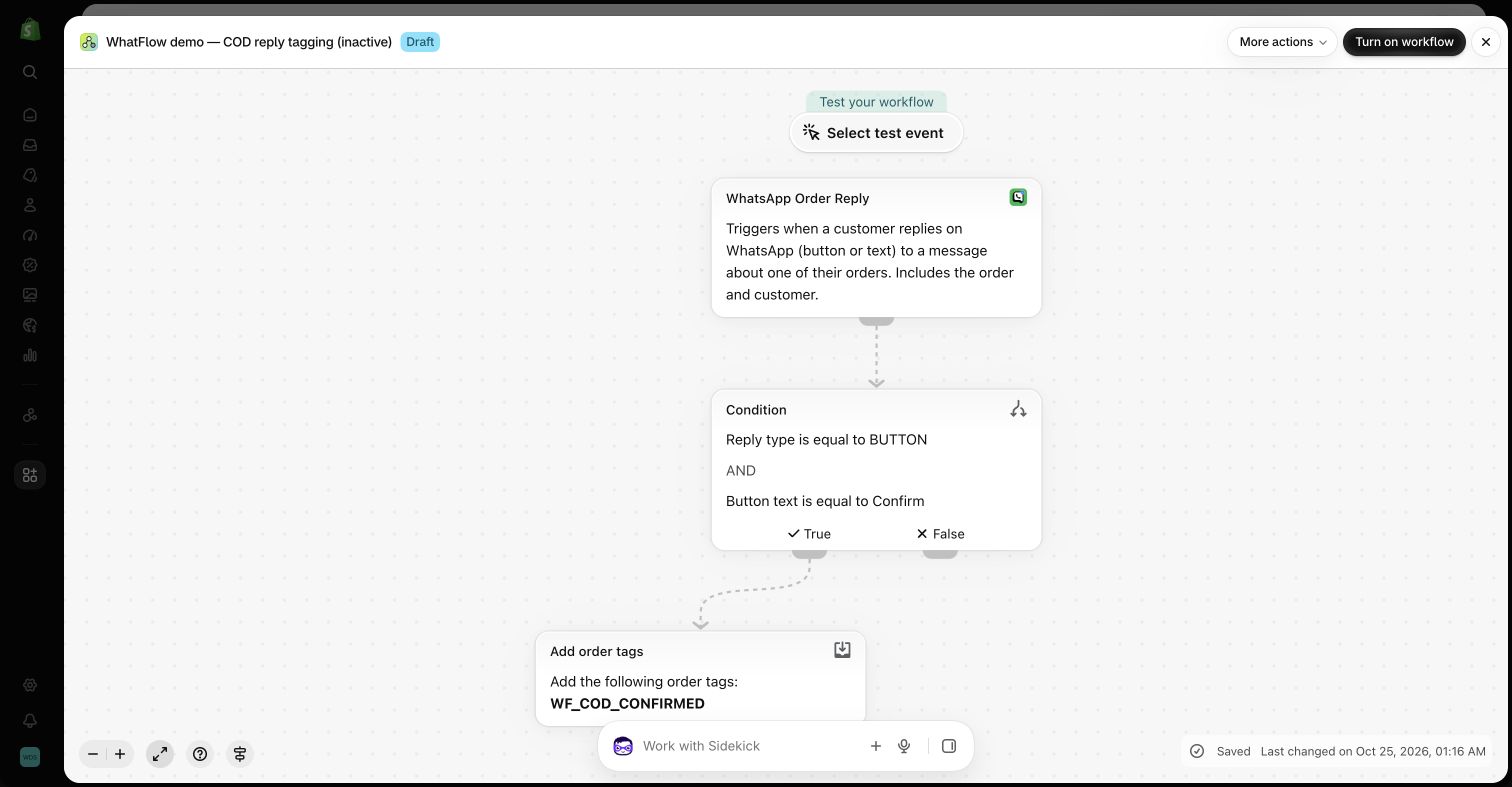
Inactive demo workflow: a WhatsApp order reply is checked before an order tag is added. The screenshot does not show a live order being changed or fulfilled.
Step 1: define the outbound message and its context
The customer needs a clear message about a particular order. When configuring a Flow message action from an order event, retain the provided order and customer context where available. Use an approved template when the outbound message requires one.
Decide exactly what the customer is being asked to confirm. Order confirmation, payment confirmation and permission to fulfill are different decisions. Keep the wording and the resulting tag consistent so the team does not interpret one answer as all three.
Step 2: check the reply type and the chosen answer
In Flow, add a condition after WhatsApp Order Reply. For a button-based path, check that Reply Type is BUTTON and then match the actual Button Text or Button Payload used by the configured message. Use the value from your own message setup; do not assume every template uses CONFIRM as its internal identifier.
A typed reply follows a separate path. An exact short keyword can be a simple first rule, but a message containing negation or a question should not become an automatic positive confirmation just because it contains a familiar word.
Step 3: add an explicit Shopify order tag
On the matching branch, use Shopify’s supported order-tag action and choose a tag your team understands, such as WF_COD_CONFIRMED. Select the order supplied by the trigger. This is a visual field-selection task; it does not require writing an Admin API call.
Use a separate tag or staff process for requests that need review. A customer asking to change an address should not accidentally pass through the same positive branch as a straightforward confirmation.
Keep the nonmatching branch useful
A nonmatching answer can remain in the WhatFlow inbox for a person to handle. If your store has a suitable installed notification or helpdesk connector, you can add its supported action to the review branch. That requires the connector’s own setup and the relevant event data.
Do not add a cancellation, refund or fulfillment step simply to make the diagram look complete. Those actions have consequences beyond acknowledging a message, and the store should define their business rules separately.
Test the order association, not only the happy button
Use controlled recipients and test orders. Include a positive tap, a negative response, a typed question, a repeated tap and a reply to an older message. If the same buyer has more than one order, verify which record the trigger supplies before relying on the automation.
Check the resulting tag in Shopify and the conversation in WhatFlow. Repeated events should not create a new business decision or repeated customer replies simply because the buyer tapped twice. An order tag can be a useful guard in the workflow when you define the intended behavior for an already-handled order.
Why this is useful for a small operations team
The founder, support colleague and warehouse do not have to pass screenshots around to establish what happened. The reply starts a store workflow and the result is visible as part of the order process. WhatFlow’s included inbox remains the place for the human conversation when the answer is not straightforward.
WhatFlow Business API does not charge inbox seat fees or restrict its features to a higher plan. Messaging allowances and applicable delivery costs still apply. That makes it practical to give the people involved in fulfillment access to the same conversation without turning each handoff into another seat subscription.
Write expected results for the same buyer’s two orders
For a hypothetical review case, give one controlled buyer two test orders and an older confirmation message. Record which order each reply is expected to reference before inspecting the inactive workflow’s mapping. Add a repeated-tap case with the expected already-handled behavior. This checks the association and business rule rather than assuming that a familiar confirmation label identifies the newest order.
Before you put this into practice
Confirm WhatsApp Order Reply supplies the intended order reference.
Match the real reply type and configured button value.
Select the trigger’s order in the tagging action.
Review negative, typed, repeated and older-message replies.
Keep the demo inactive and consequential actions outside this tagging recipe.
WhatFlow Business API includes all features across plans, including Free, with no inbox seat fees. Choose your plan around messaging allowances and rates.
Safwan Adnan is co-founder and CEO of WhatFlow. This guide is published by WhatFlow and includes its product where relevant. Worked examples are illustrative unless a caption identifies an actual demo-store configuration; they are not merchant performance results.
No API code is needed for the standard examples using the installed WhatFlow Flow triggers and actions. You choose steps, conditions and supplied variables in Shopify Flow. More advanced transformations or custom integrations can require additional technical work.
Is Shopify Flow included in every Shopify plan?
Shopify currently makes Flow available on Basic, Grow, Advanced and Plus. Some Flow features have additional plan restrictions. The installed-app WhatFlow examples do not require building your own HTTP request action.
Does WhatFlow feature-gate its Flow integration?
WhatFlow Business API provides all features across its plans, including Free. Plans differ by messaging allowances and rates, and the team inbox has no seat fees. Shopify and other connected apps can have their own plan requirements and charges.
Why use WhatsApp Order Reply instead of WhatsApp Button Clicked?
The order-reply trigger includes Shopify order and customer references. The generic button event supplies reply and sender information but should not be treated as an identified order. Use the event that provides the data required by the next action.
Does a confirmation workflow automatically fulfill a COD order?
Not in this recipe. It adds an explicit order tag after a matching response. Fulfillment, cancellation and payment actions need their own separately defined business rules and testing.
Official app identity and advertised Shopify Flow integration. Trigger and action descriptions were also checked against WhatFlow’s current extension definitions.