Route incoming WhatsApp messages in Shopify Flow by selecting WhatFlow Business API’s text-message trigger, checking a narrow condition and mapping the reply recipient from the incoming sender field. Keep order changes on an order-aware path. Review nonmatching text, repeated messages and human handoffs while inactive, and use free-form replies only within the applicable customer-service window.
Key takeaways
An incoming sender number is not a resolved Shopify order.
Start with a narrow request condition before broadening intent matching.
An invitation to reply TEAM does not itself assign a colleague.
Start with the questions your team answers every day
“How long does delivery take?” is a good candidate for a short automated answer. “My parcel arrived damaged and I need help” needs a different path. A useful support workflow recognizes a narrow request, gives the customer an appropriate next step and leaves room for the team to take over.
WhatFlow Business API brings incoming WhatsApp events into Shopify Flow. You can build the basic rule in the visual editor without creating a webhook or writing API code. This guide describes a first-response recipe; it does not assume that every incoming phone number has already been matched to a Shopify customer or order.
Step 1: select WhatsApp Text Message Received
Open Flow, create an inactive workflow and choose WhatFlow’s WhatsApp Text Message Received trigger. Inspect the supplied fields, especially Message Body, Sender Phone Number and Profile Name. Use the message body to evaluate the request and the sender number to address a response.
The profile name is useful conversation context, but it is not an authenticated Shopify customer identity. Similarly, the sender number alone should not be used to decide which of several orders to change. Use the order-specific reply trigger when your next action requires an order reference.
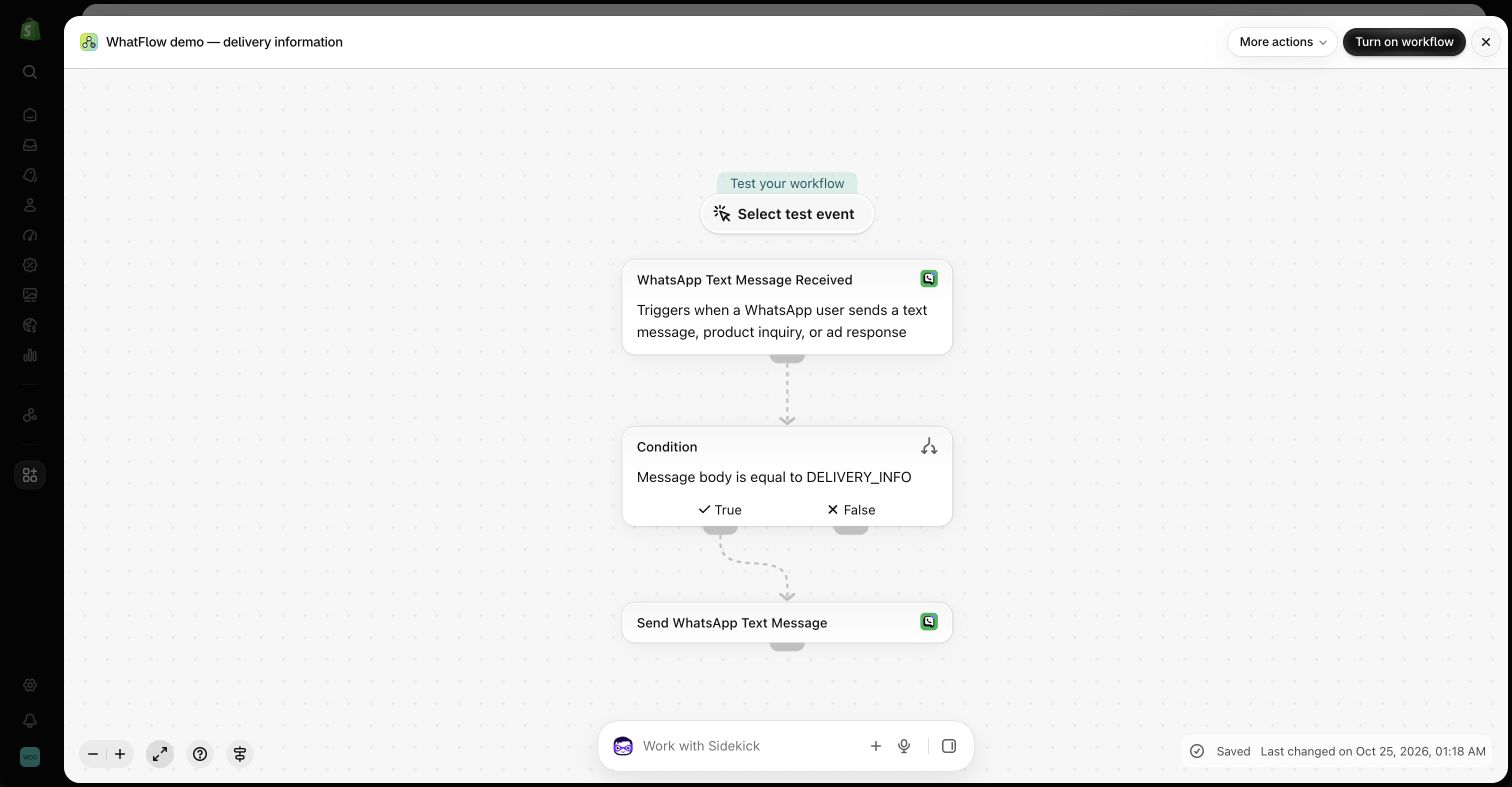
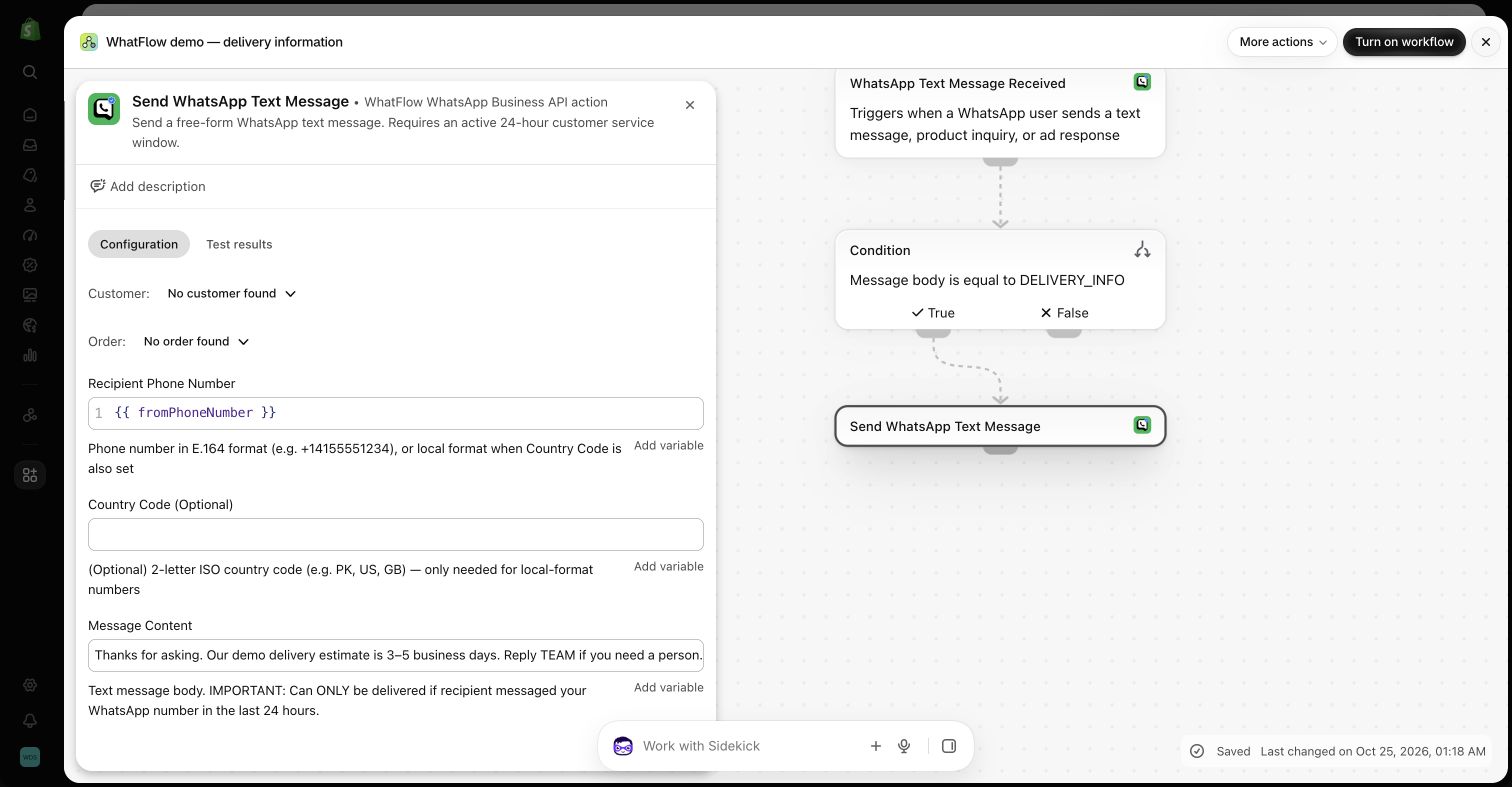
Inactive demo workflow: an incoming WhatsApp text message is evaluated before a response action. Review the condition and recipient mapping before enabling your own version.
For a controlled example, use a dedicated test keyword such as DELIVERY_INFO rather than a broad rule that treats every mention of delivery as the same question. That makes the first test predictable. Once the basic mapping works, decide which real phrases your store should recognize and which should go to a person.
A complaint mentioning delivery is not necessarily a request for the delivery policy. Check how the condition behaves with questions, negation, mixed languages and unrelated text. Avoid sending several overlapping automated responses when one message matches more than one workflow.
Step 3: choose a concise reply or a small set of choices
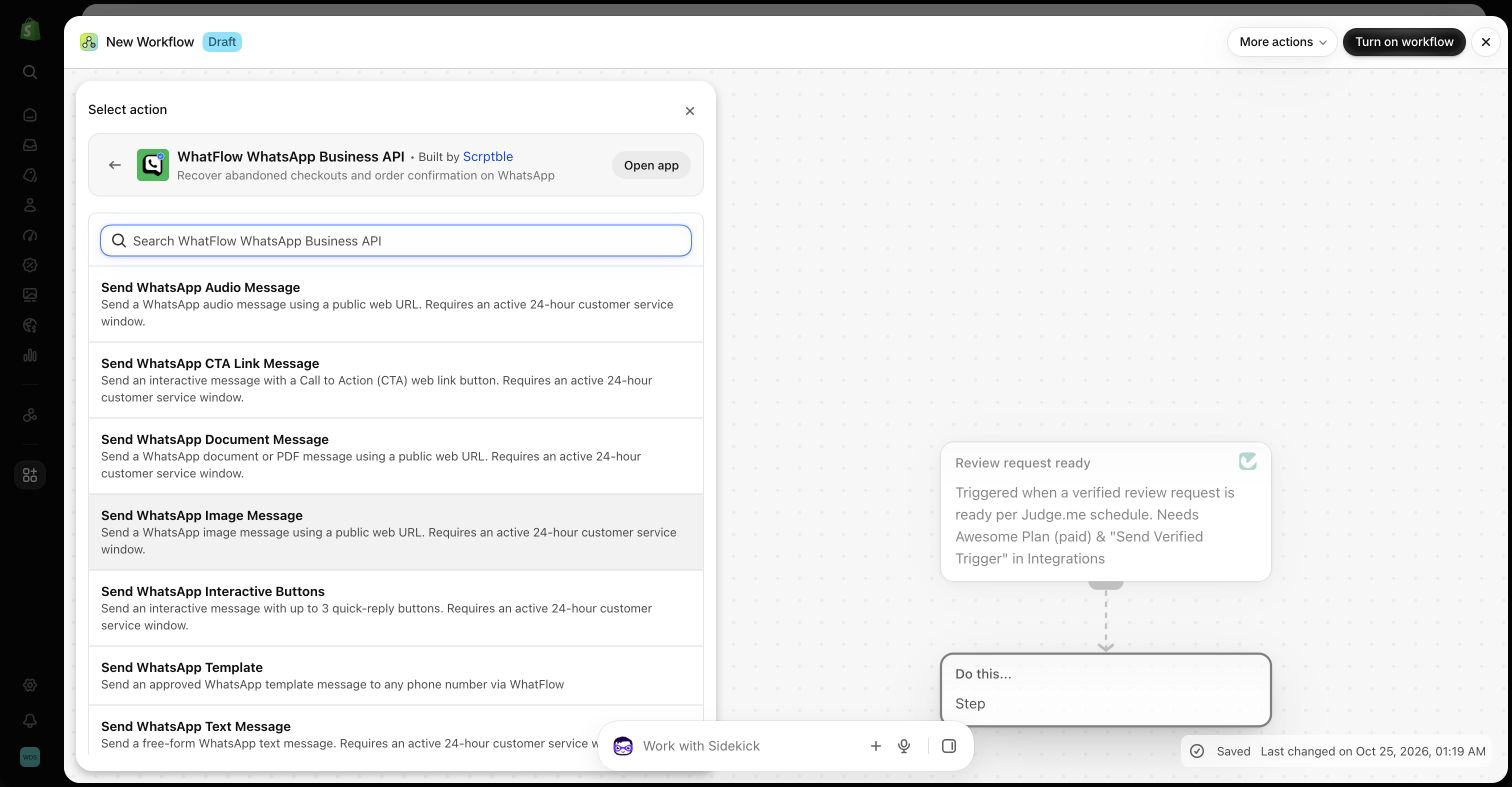
Add Send WhatsApp Text Message for a short answer, or Send WhatsApp Interactive Buttons when the next step benefits from choices. The button action supports up to three quick replies. For example, a support greeting could offer Delivery, Returns and Speak to team, using the actual labels configured in your action.
Map the recipient from the incoming sender-number field. These free-form actions require an active WhatsApp customer-service window. An incoming message normally creates that context, but a long delay can change the situation; do not assume a response scheduled much later still qualifies.
Inactive demo: Recipient Phone Number uses fromPhoneNumber. The 3–5 business day text is a sample policy, and replying TEAM does not itself assign a teammate. Source
What the demo actually does
In the demo store, the condition checks whether Message Body equals DELIVERY_INFO. The true branch sends the sample delivery-policy text to fromPhoneNumber. Sidekick generated those installed WhatFlow steps, and we inspected the recipient and message fields before saving the workflow inactive.
The sample answer mentions 3–5 business days and invites the buyer to reply TEAM. Replace that estimate with your real policy. TEAM is an invitation to continue the conversation, not a configured assignment action: the team still needs an inbox process or a separately supported routing workflow. No customer messages were sent during this demonstration.
WhatFlow message actions available in the demo store’s Shopify Flow editor. Message type and customer-service-window rules still apply. Source
Use button events for intent, and order replies for order work
A separate WhatsApp Button Clicked workflow can match the configured Button Text or Button Payload and choose the next response. Inspect the actual value from your setup rather than copying an imaginary universal identifier from a tutorial.
A button saying “My order” does not by itself identify an order. If the next step needs to tag a particular order, use a workflow with the required order context or ask a person to resolve the request. This distinction keeps an easy support menu from becoming an unreliable order automation.
Make the human handoff understandable
WhatFlow’s team inbox is where staff can read the conversation and respond when the rule is not enough. A message promising “I have assigned this to your account manager” would be misleading unless a supported action really performed that assignment. Use honest wording about the next step your team will actually follow.
If your store has an installed helpdesk connector with an appropriate action, Flow can use it to create a supported task or notification. Check that connector’s required customer identifiers and permissions. The generic text trigger does not automatically supply every field another app might need.
WhatsApp media received is a separate trigger for images, videos, audio, documents and stickers. It can distinguish an attachment-based request from ordinary text. The supplied Meta media ID is not a public image URL; a temporary download URL, when supplied, expires and should stay private.
A photo is useful evidence for a colleague to review, not an automatic reason to approve a claim or refund. Keep customer attachments out of public spreadsheets, screenshots and documentation. Build a staff review path appropriate to the sensitivity of the request.
Test for silence as well as the expected reply
Try a matching keyword, a nonmatching message, a button tap and a repeated message with a controlled recipient. Confirm which branch runs, whether a response is attempted only once and whether the inbox conversation remains understandable. Also test the opt-out path: a STOP event should not start a promotional reply.
For a growing store, the economics of the handoff matter. WhatFlow Business API includes its features across plans and does not charge per inbox seat. You can involve another support colleague without a new seat subscription, while still budgeting for message allowances, rates and the other apps involved.
Keep DELIVERY_INFO as the exact controlled condition in the inactive demonstration. Add a review note showing that an unrelated complaint should not receive the sample delivery-policy answer. Replace the sample delivery estimate with the store’s maintained policy before any later use, and name the inbox process that handles TEAM rather than implying an assignment action already exists.
Before you put this into practice
Inspect Message Body and sender-number mapping.
Check a matching keyword and a nonmatching complaint.
Review repeats, overlapping rules and STOP handling.
WhatFlow Business API includes all features across plans, including Free, with no inbox seat fees. Choose your plan around messaging allowances and rates.
Safwan Adnan is co-founder and CEO of WhatFlow. This guide is published by WhatFlow and includes its product where relevant. Worked examples are illustrative unless a caption identifies an actual demo-store configuration; they are not merchant performance results.
No API code is needed for the standard examples using the installed WhatFlow Flow triggers and actions. You choose steps, conditions and supplied variables in Shopify Flow. More advanced transformations or custom integrations can require additional technical work.
Is Shopify Flow included in every Shopify plan?
Shopify currently makes Flow available on Basic, Grow, Advanced and Plus. Some Flow features have additional plan restrictions. The installed-app WhatFlow examples do not require building your own HTTP request action.
Does WhatFlow feature-gate its Flow integration?
WhatFlow Business API provides all features across its plans, including Free. Plans differ by messaging allowances and rates, and the team inbox has no seat fees. Shopify and other connected apps can have their own plan requirements and charges.
Will this automatically assign conversations to an agent?
This recipe handles conditions and replies. Do not promise automatic agent assignment unless a supported action in your installed app performs it. Staff can handle exceptions in the WhatFlow team inbox.
Can an incoming image be sent straight to another app?
Only when the next action supports the supplied data and your store handles the attachment appropriately. A Meta media ID is not a public URL, and temporary download links are private and expire.
Official app identity and advertised Shopify Flow integration. Trigger and action descriptions were also checked against WhatFlow’s current extension definitions.