Connect WhatFlow Business API to another Shopify app through Flow when the installed apps expose compatible triggers and actions and supply the identifiers each step needs. Verify the connector setup, any separate plan requirement and the recipient mapping. Treat the guide’s app combinations as blueprints; the inactive screenshots do not prove that every third-party route has executed.
Key takeaways
An app listing or integration logo does not expose every feature as a Flow task.
A customer ID needs a supported recipient lookup before a WhatsApp send.
Third-party app plans remain separate from WhatFlow’s all-feature plans.
Your store already has useful automation building blocks
A review app knows when it wants to request feedback. Shopify knows when an order reaches a particular stage. A WhatsApp customer can tell you they need help by replying to a message. Flow is useful because it can connect compatible events and actions without asking the merchant to build a separate integration server.
WhatFlow Business API contributes incoming WhatsApp triggers and outgoing message actions to that environment. The benefit is practical: a merchant can often compose a workflow from installed steps in Shopify’s editor, keep the business rule visible and adjust it as the store changes.
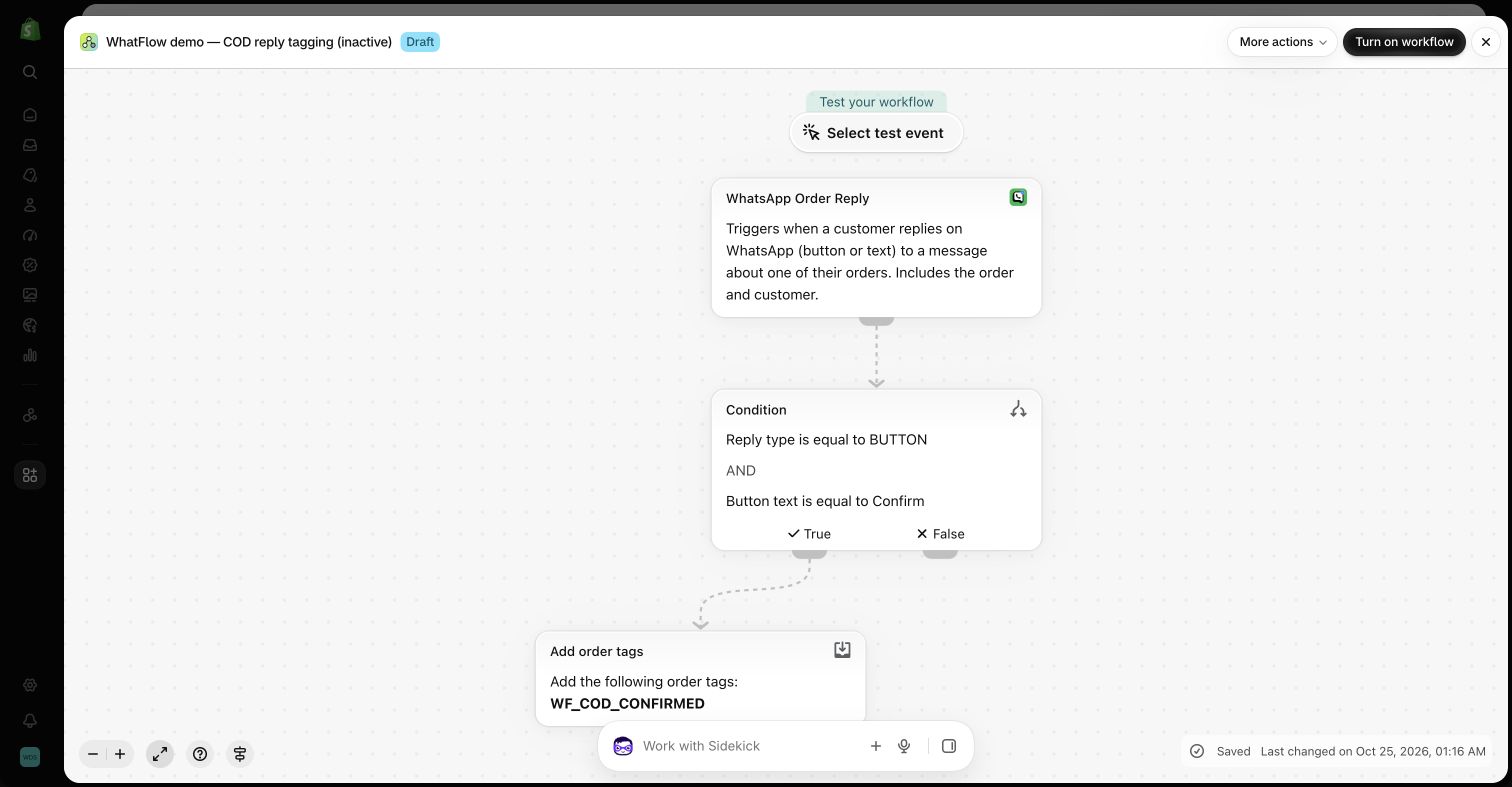
Inactive demo: Shopify’s Add order tags action uses order.id from the WhatFlow order-reply event. Other app blueprints require their own compatible connectors and setup. Source
Check three things before combining apps
First, both sides need the relevant Flow capability. An app appearing in the Shopify App Store does not mean every feature is available as a Flow task. Second, install and configure the connector or connection required for that task. Third, confirm that the trigger supplies the identifiers and fields the next action needs.
For example, a WhatsApp sender number is not automatically a helpdesk customer ID, and a generic button event is not automatically an order. If the next step needs a missing value, the workflow needs a supported lookup, a different trigger or a human step. The visual editor makes the connection easier to build; it cannot invent missing business data.
Check Shopify Flow connectors for installation and connection requirements alongside the actual app tasks.
Blueprint 1: a Judge.me review request becomes a WhatsApp message
WhatFlow includes a Flow template named Send WhatsApp review request for Judge.me reviews. Its purpose is to send a WhatsApp review request when Judge.me emits the relevant review-request event. Use the installed template and inspect the actual trigger fields in your store before adapting it.
The recipe is straightforward: the review-request event starts the flow, conditions check the required customer details and messaging permission, and WhatFlow sends an eligible approved template containing the correct review link. The template must match the variables used by the action. A review request sent after the customer-service window should not be replaced with an unrestricted free-form message.
Test the destination link and recipient using controlled data. If you also run another review-reminder sequence, decide which app owns the reminder schedule so the customer does not receive overlapping requests. The screenshot illustrates the Flow composition model; it is not a claim that every third-party blueprint has been run in this demo store.
Two details from the live Judge.me connector
In the demo store’s installed connector, Review request ready explicitly requires Judge.me’s paid Awesome plan and the Send Verified Trigger setting in Integrations. WhatFlow’s all-feature plans do not remove that separate Judge.me requirement. Check your installed connector before budgeting or following the recipe.
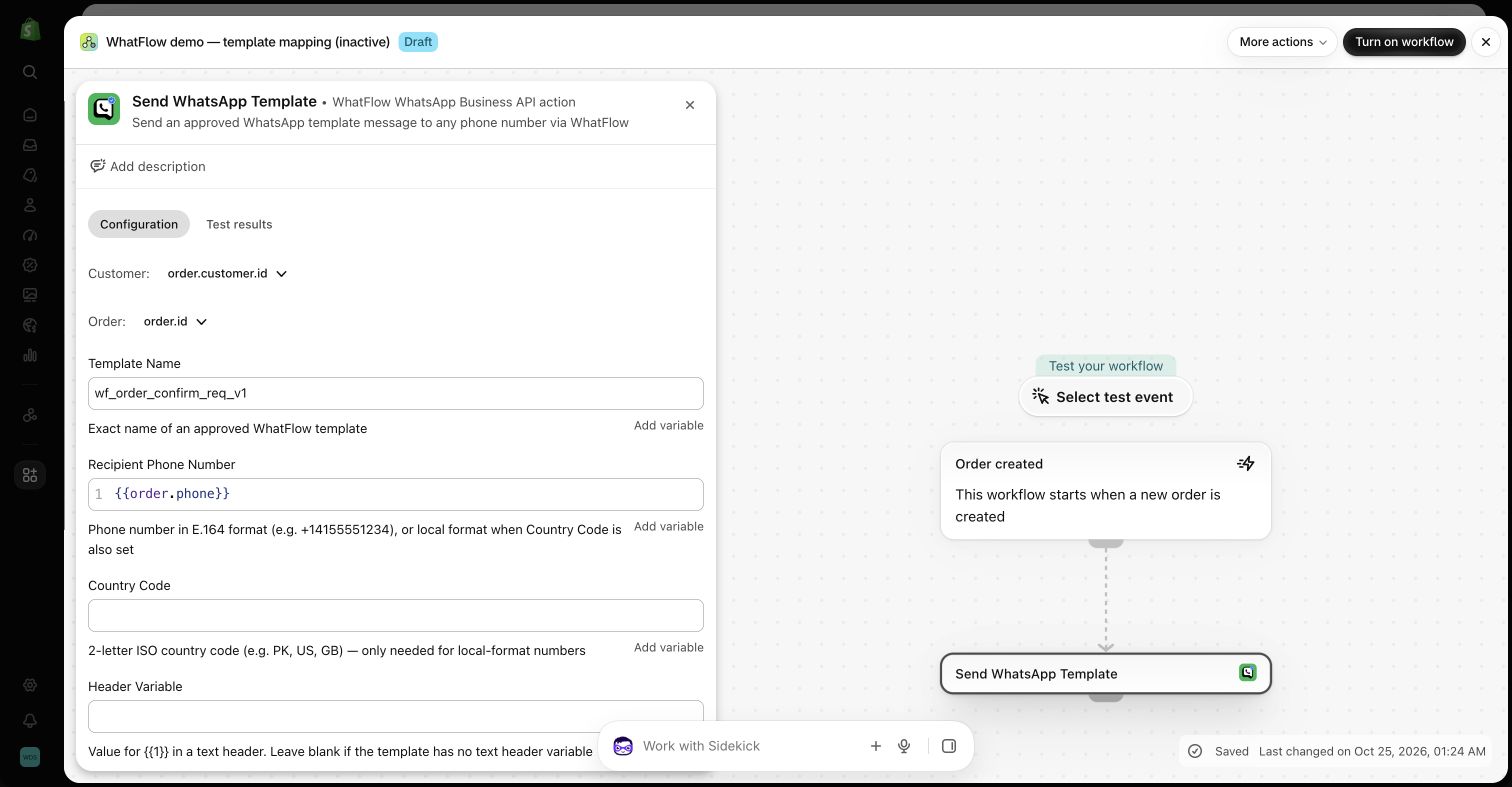
The trigger’s variables include customer_id, order_id, buyer_first_name, product_title, product_image_url and product_review_url, but the variable list we inspected did not include a buyer phone number. A customer ID is not a recipient phone number. Use a supported lookup that resolves the intended customer and permitted WhatsApp number before sending, or leave the workflow inactive until that mapping is available. Our template-action screenshot uses a Shopify order event with order.phone; it does not demonstrate a completed Judge.me-to-WhatsApp send.
WhatFlow template action in the demo Flow editor. Template names and variable choices must match the approved template in your own account. Source
Blueprint 2: an order reply changes the store’s next step
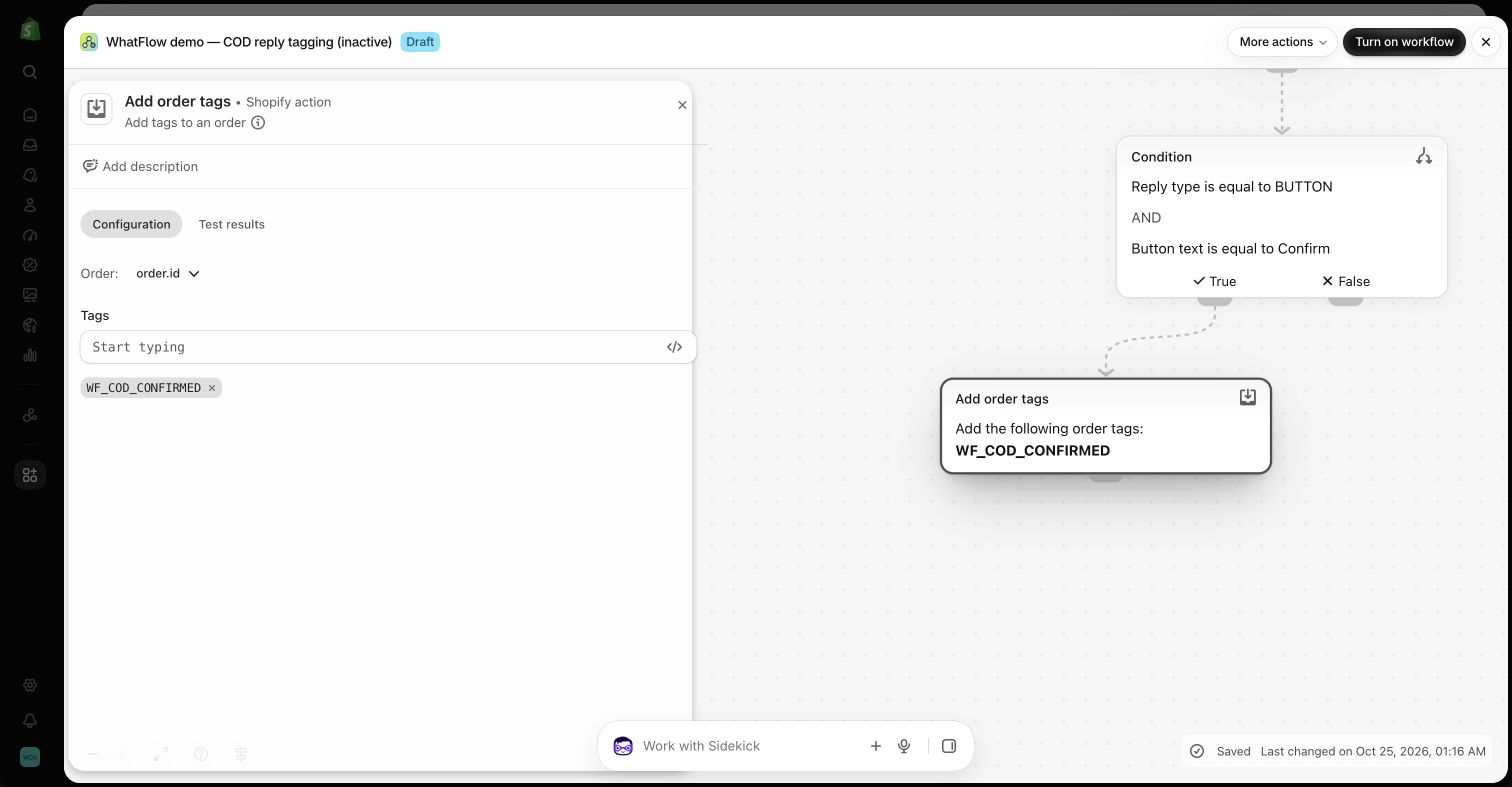
Choose WhatsApp Order Reply when the customer’s response needs to affect an identified Shopify order. Check the actual reply type and button value, then use a supported order-tag action to record the result. A clearly named tag can help a fulfillment team distinguish confirmed orders from those awaiting attention.
A different branch can represent a request for help. If a compatible installed helpdesk exposes a suitable action, use that action with the required identifiers and a concise description of the issue. Do not claim that a ticket exists until the action is configured and its run result confirms it. Without that connector, keep the handoff in the WhatFlow team inbox.
Inactive demo workflow: a WhatsApp order reply is checked before an order tag is added. The screenshot does not show a live order being changed or fulfilled. Source
Blueprint 3: record an operational event for the team
Some stores use a connected spreadsheet or internal notification action for a lightweight operations log. A WhatFlow event can contribute a timestamp and a short status when the installed connector supports the required action and authentication. Use only the fields the team actually needs.
A spreadsheet should not become a copy of every private conversation. Avoid logging full message bodies, customer attachment links or unnecessary phone numbers by default. Received media download URLs can expire and should not be treated as permanent file storage. The logging action should help the operational process rather than create a second uncontrolled inbox.
Blueprint 4: an app milestone starts a relevant customer message
A compatible loyalty, subscription or customer-segmentation app may expose a useful milestone through Flow. When it does, a store can evaluate the event and send an appropriate WhatFlow template, provided the trigger supplies the recipient data and the store has the required permission.
Keep the message tied to the actual milestone and check duplicate behavior. A customer becoming eligible for a tier, a subscription renewing and a payment failing deserve different wording and rules. Validate the exact app task in your installed version rather than assuming every loyalty or subscription app uses the same trigger name.
Keep one owner for each customer-facing automation
It is easy for several apps to react to the same order event. Before activating a new workflow, list the messages already sent by Shopify, WhatFlow and your other apps. Decide which system owns each notification and how the others should behave.
Then test the whole path: event, condition, recipient, message, external action and human handoff. A diagram with several app logos can look complete while one required field is missing. The actual run history and the final customer experience are the useful checks.
Why WhatFlow fits this style of Shopify automation
The tight Shopify integration means the merchant can work with familiar events, order data and visual steps rather than maintaining an independent automation stack for every task. WhatFlow’s inbox gives the team a place to continue the conversation when a branch needs a person.
WhatFlow Business API includes its features across plans and does not charge per inbox seat. Message allowances and rates determine the plan, while Shopify and third-party apps keep their own pricing. That combination is especially useful when a small team wants several people involved in the workflow without multiplying support-seat costs.
Record the missing field before extending a blueprint
For the documented Judge.me blueprint, write down the paid-plan and Send Verified Trigger requirements beside the installed event. Then record that its inspected variables omit a buyer phone number. Leave the draft inactive until a supported lookup supplies the intended permitted recipient; the order.phone mapping in a different screenshot is not a completed solution to that gap.
Before you put this into practice
Confirm the exact installed trigger and action.
Verify third-party plan and connection requirements.
Map every required identifier and recipient field.
Assign one owner to the reminder schedule and exception path.
WhatFlow Business API includes all features across plans, including Free, with no inbox seat fees. Choose your plan around messaging allowances and rates.
Safwan Adnan is co-founder and CEO of WhatFlow. This guide is published by WhatFlow and includes its product where relevant. Worked examples are illustrative unless a caption identifies an actual demo-store configuration; they are not merchant performance results.
No API code is needed for the standard examples using the installed WhatFlow Flow triggers and actions. You choose steps, conditions and supplied variables in Shopify Flow. More advanced transformations or custom integrations can require additional technical work.
Is Shopify Flow included in every Shopify plan?
Shopify currently makes Flow available on Basic, Grow, Advanced and Plus. Some Flow features have additional plan restrictions. The installed-app WhatFlow examples do not require building your own HTTP request action.
Does WhatFlow feature-gate its Flow integration?
WhatFlow Business API provides all features across its plans, including Free. Plans differ by messaging allowances and rates, and the team inbox has no seat fees. Shopify and other connected apps can have their own plan requirements and charges.
Does Flow mean WhatFlow integrates with every Shopify app?
It can work with compatible installed app triggers and actions when the required data is available. Flow does not expose every feature of every app automatically.
Is there a Judge.me review-request workflow?
WhatFlow includes a Shopify Flow template named Send WhatsApp review request for Judge.me reviews. Install the required apps, review its current configuration and map your approved template and customer data before testing.
Official app identity and advertised Shopify Flow integration. Trigger and action descriptions were also checked against WhatFlow’s current extension definitions.