Use Shopify Sidekick on desktop to draft an inactive Flow workflow from a precise event, condition and intended action. Then inspect the actual WhatFlow Business API tasks, recipient variables and order references in Flow. Keep the draft inactive while checking positive, nonmatching and repeated-event cases; the generated diagram and configuration screenshots do not establish message delivery.
Key takeaways
Describe the intended business rule and explicitly request an inactive draft.
Select a missing WhatFlow task manually rather than accepting a substitute.
Review generated fields and branches separately from any later delivery check.
Describe the store outcome before describing the technology
You do not need to start an automation project with an API specification. A merchant can start with a plain sentence: when a customer confirms the order in WhatsApp, record that confirmation on the correct Shopify order. The event, rule and outcome are already present in that sentence.
Shopify supports generating Flow workflows with Sidekick from a plain-language description on desktop. WhatFlow Business API supplies WhatsApp triggers and actions that you can select in Flow. Together, they offer an approachable way to move from an idea to a visual workflow, with a review step before anything goes live.
What Sidekick does, and what you should check yourself
Sidekick can generate workflow elements for review and modification. Shopify documents that generated workflows start inactive and can omit business-specific logic in complex requests. Treat the result as a first draft: inspect the selected trigger, each condition and the fields passed into the action.
An AI-generated description is not proof that the correct WhatFlow task was selected. If Sidekick does not add the installed WhatFlow trigger or action you need, choose it manually in Flow. Standard field mapping does not require writing API code, but it still requires understanding which customer or order the event refers to.
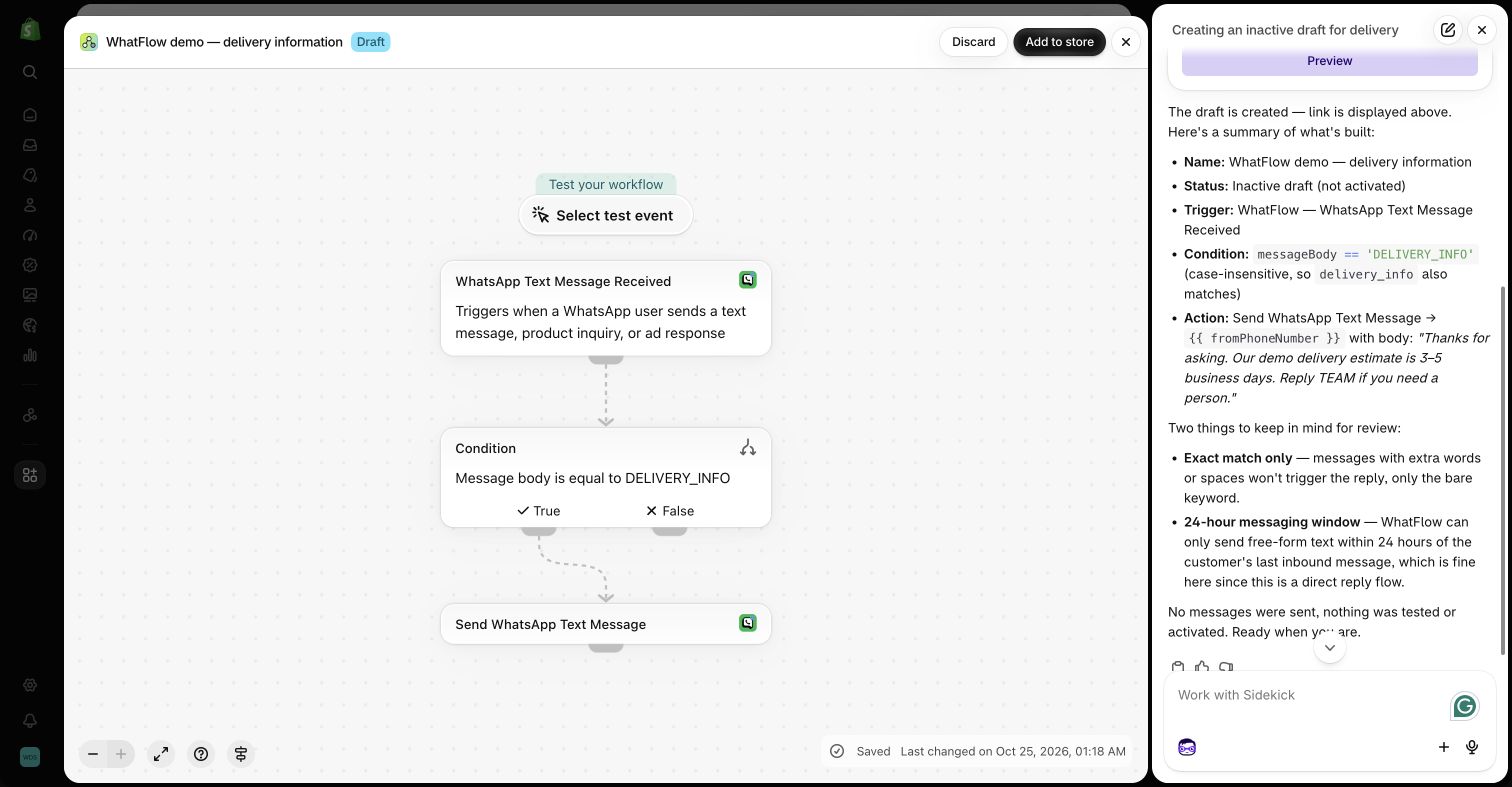
Sidekick-assisted demo workflow. AI-generated steps need review; the demonstration is kept inactive and does not send customer messages. Source
What Sidekick built in the demo store
We asked Sidekick to create an inactive delivery-information workflow using WhatsApp Text Message Received, an exact DELIVERY_INFO condition and Send WhatsApp Text Message addressed to fromPhoneNumber. Its preview contained all three steps. We added the draft to the store, inspected the action’s recipient and sample message, and left it inactive.
That is the workflow shown beside the Sidekick conversation in the screenshot. It demonstrates generation and configuration, not delivery. The order-tagging prompt below is a separate exercise, shown in its own manually configured demo screenshot. Always inspect the actual fields rather than relying only on Sidekick’s prose summary.
Step 1: open Flow and write a precise request
On desktop, open Shopify Flow and then Sidekick. Include the event, condition, intended action and a clear instruction to keep the result inactive. For an order-reply exercise, a useful request is: “Draft an inactive workflow using WhatFlow WhatsApp Order Reply. When Reply Type is BUTTON and Button Text matches my configured confirmation label, add WF_COD_CONFIRMED to the order supplied by the trigger. Leave other replies for manual review. Do not send messages or activate the workflow.”
Replace the confirmation label with the one your message actually uses. If you have not defined that label yet, keep the workflow as an unfinished draft rather than treating placeholder text as a working condition.
Step 2: inspect the event and the available order reference
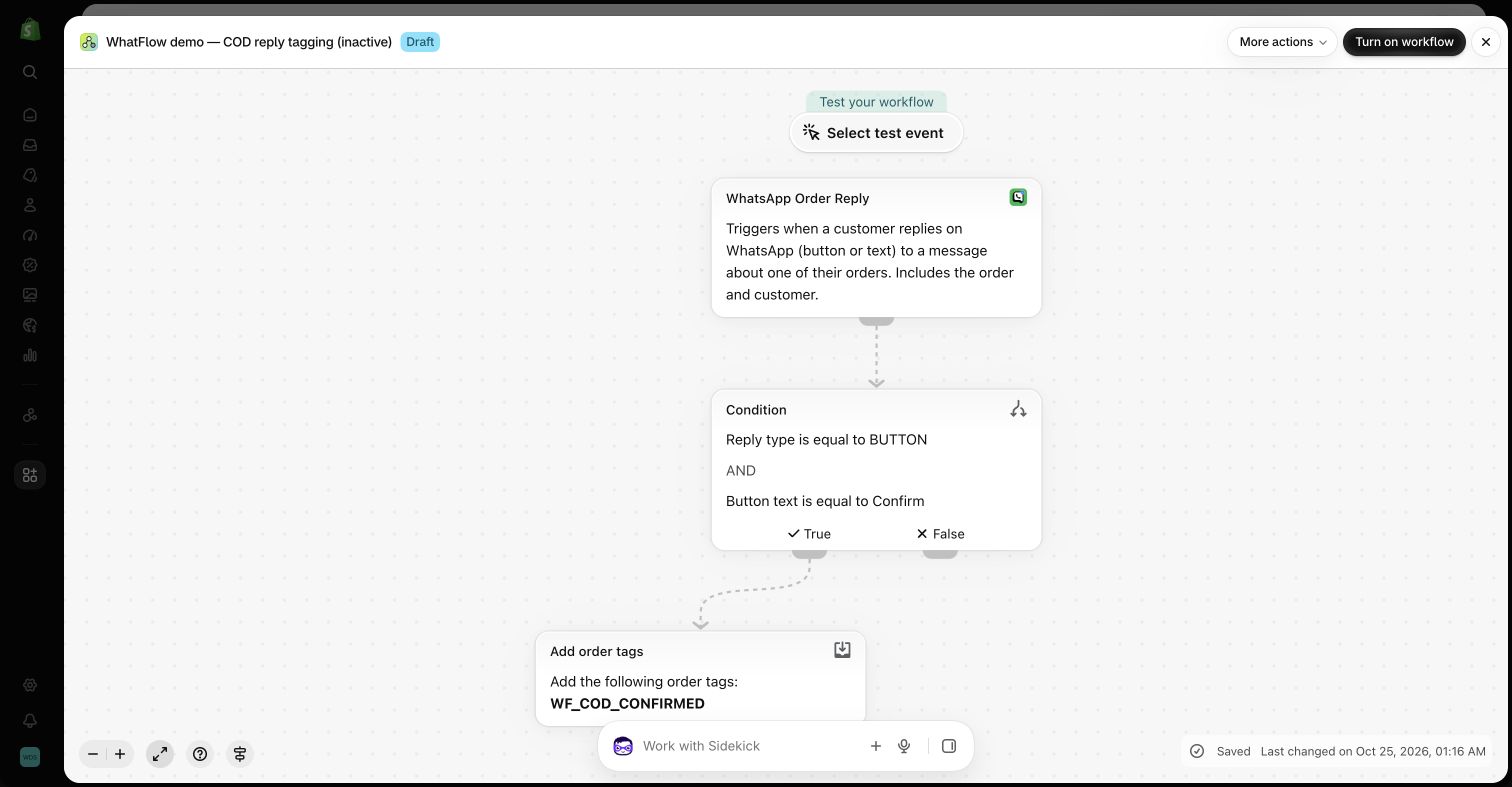
Open the generated workflow and check that its trigger is WhatsApp Order Reply. The generic WhatsApp Button Clicked event is useful for intent routing, but it should not be substituted for an order-aware event merely because both involve a button.
Inspect which order the action uses. The trigger’s supplied order reference is different from a fixed order selected during a demo. A production workflow must resolve the intended order for each event. Include a controlled test where the same buyer has more than one order.
For the order-aware exercise, follow the order-reply configuration rather than substituting a generic button event.
Inactive demo workflow: a WhatsApp order reply is checked before an order tag is added. The screenshot does not show a live order being changed or fulfilled. Source
Step 3: review the true and false branches
The positive branch should represent the exact business decision in the request. A matching confirmation can add the intended tag. A question, negative response or nonmatching button should not silently pass through the same positive branch.
Check existing tags or another appropriate guard if the same reply can arrive more than once. Do not let the AI broaden a simple tagging exercise into cancellation, refund or fulfillment actions. Those outcomes need their own explicit store rules.
A second prompt: draft an outbound message workflow
For an outbound exercise, describe a supported Shopify event and the template outcome: “Draft an inactive workflow for an appropriate fulfillment event. Check that the required customer phone and tracking values exist, then add WhatFlow Send WhatsApp Template. Leave the exact approved template name and variables for me to review. Do not activate or send a test message.”
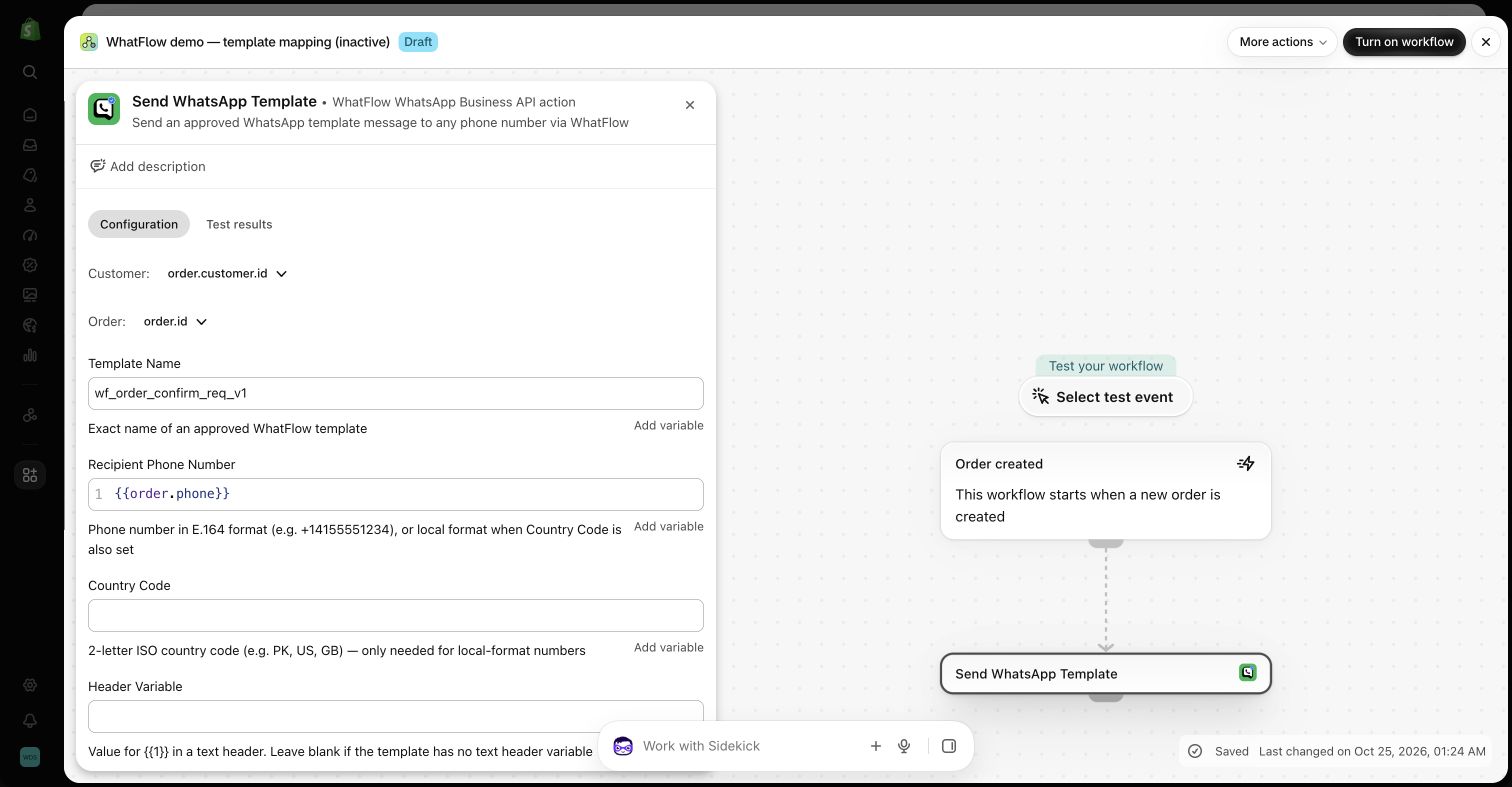
The request deliberately does not invent an approved template name or assume an order-created event contains tracking data. After generation, select the actual approved template and map the fields from the event. If Sidekick cannot add the WhatFlow action, insert it through Flow’s action picker.
WhatFlow template action in the demo Flow editor. Template names and variable choices must match the approved template in your own account. Source
Review recipient, timing and message rules
Before activation, check that the recipient is a supplied customer variable rather than a demonstration number. Review every template placeholder, the intended language and any media or button input. Confirm what happens when required data is missing.
The message format must still meet WhatsApp requirements. Free-form text, interactive buttons, CTA links and separate media actions require an active customer-service window; eligible messages outside it use approved templates. Sidekick cannot remove those channel rules.
Test the business rule, not just the generated diagram
Use controlled recipients and test orders. Check a positive case, a nonmatching response, missing data and duplicate events. Inspect the resulting Shopify state and the WhatFlow conversation. A generated workflow that looks plausible is not the same as a tested workflow.
Keep the draft inactive until the logic and final outcome match the request. Shopify lets merchants continue refining the workflow manually or with Sidekick. Apply a change only after checking what it modifies, especially when a new branch adds an external action.
Keep the finished workflow understandable to your team
Give the workflow a descriptive name and add a note explaining its purpose, required template and exception path. The next colleague should be able to see why a branch exists without reading the original AI conversation. That is where visual automation is most useful for a nontechnical team.
WhatFlow Business API includes its features across plans, including Free, with no inbox seat fees. The team can start with a small workflow and involve more colleagues in the conversation without a separate seat subscription. Message allowances, rates and the terms of Shopify or other apps still apply.
Keep a prompt-to-configuration review note
Beside the inactive draft, record three lines: requested rule, actual selected steps and remaining gaps. For the supplied DELIVERY_INFO demo, inspect the exact text condition and fromPhoneNumber recipient. Keep the separate order-tagging exercise in its own note so a colleague does not mistake the demonstrated text workflow for a completed order-confirmation process.
Before you put this into practice
Keep the generated workflow inactive during review.
Confirm the installed trigger and recipient variable in the editor.
Check false, repeated-event and missing-data cases.
Record which checks inspect logic and which would require a separate controlled end-to-end exercise.
WhatFlow Business API includes all features across plans, including Free, with no inbox seat fees. Choose your plan around messaging allowances and rates.
Safwan Adnan is co-founder and CEO of WhatFlow. This guide is published by WhatFlow and includes its product where relevant. Worked examples are illustrative unless a caption identifies an actual demo-store configuration; they are not merchant performance results.
No API code is needed for the standard examples using the installed WhatFlow Flow triggers and actions. You choose steps, conditions and supplied variables in Shopify Flow. More advanced transformations or custom integrations can require additional technical work.
Is Shopify Flow included in every Shopify plan?
Shopify currently makes Flow available on Basic, Grow, Advanced and Plus. Some Flow features have additional plan restrictions. The installed-app WhatFlow examples do not require building your own HTTP request action.
Does WhatFlow feature-gate its Flow integration?
WhatFlow Business API provides all features across its plans, including Free. Plans differ by messaging allowances and rates, and the team inbox has no seat fees. Shopify and other connected apps can have their own plan requirements and charges.
Will Sidekick activate the generated workflow automatically?
Shopify documents that Sidekick-generated workflows are inactive by default and require manual activation. Keep the draft inactive while reviewing and testing its logic.
What if Sidekick does not select the WhatFlow action?
Use the installed WhatFlow action manually in Flow and map the required fields. Do not assume a different generated step provides equivalent behavior or that every app task is supported by the AI generator.
Official app identity and advertised Shopify Flow integration. Trigger and action descriptions were also checked against WhatFlow’s current extension definitions.