Place review widgets and WhatsApp buttons so shoppers can still read product information, select variants and reach purchase controls on a phone. Test the combined layout with cart drawers, banners, opened reviews and the keyboard. Check labels, close controls and larger text, then repeat the same mobile journey after theme or app changes.
Key takeaways
Judge the combined mobile page, including sticky and floating elements.
Open every widget and overlay before approving its placement.
Repeat the same checks after changing the theme or apps.
A review widget and a WhatsApp button can each help a shopper make a decision. On a phone, they can also compete with a sticky add-to-cart bar, a cookie notice and a discount popup. The combined experience matters more than how polished each component looks on its own.
Audit the real store on a small screen before adding another floating element. Use several product types, open the cart and try the important controls with a thumb. The goal is to keep reassurance and help available while preserving a clear path through the purchase.
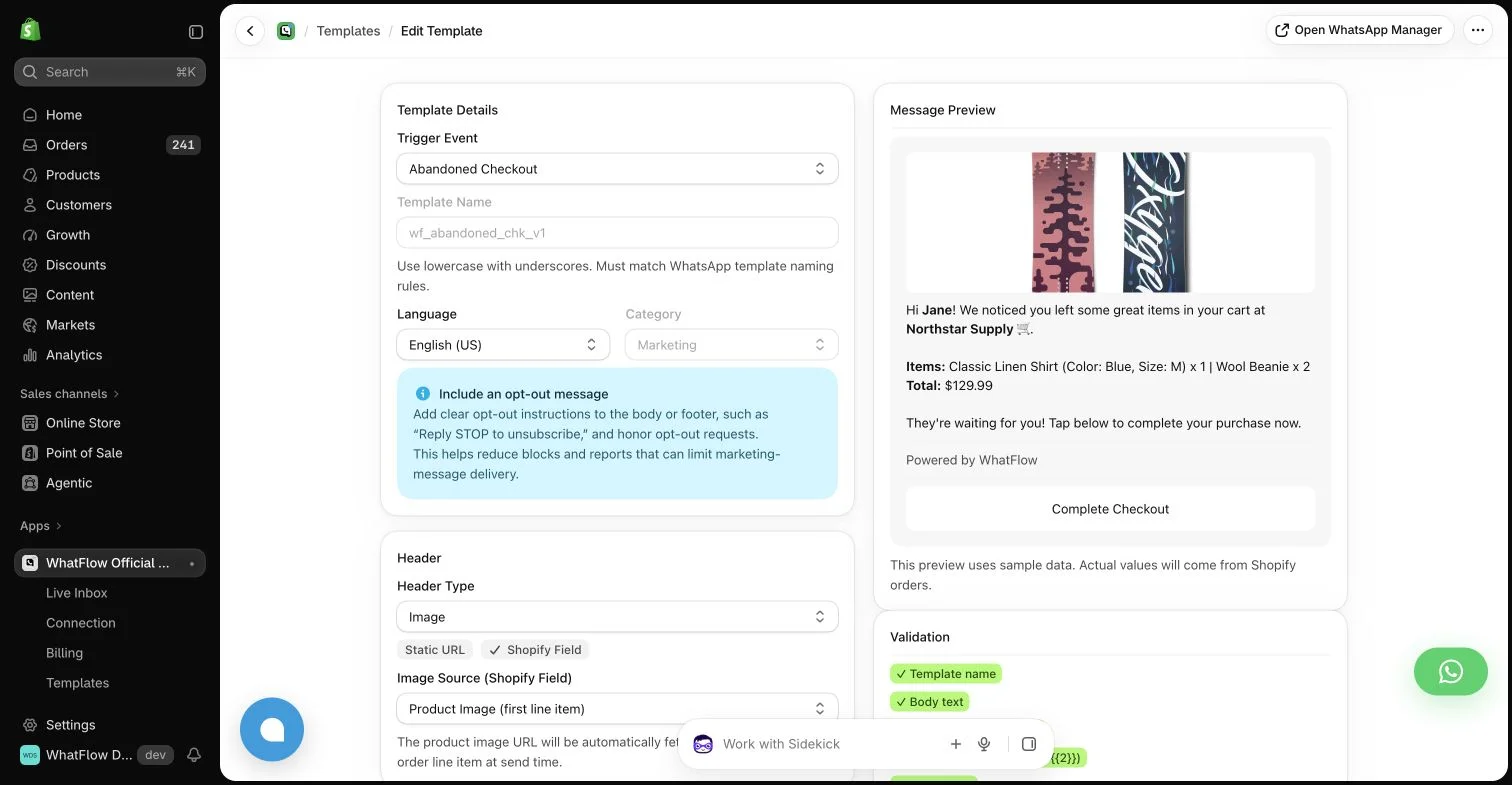
WhatFlow template editor in the demo store. Sample message data illustrates configuration, not a completed send or measured campaign outcome.
Start with the main purchase controls
Identify the price, variant selection, quantity and purchase action. These controls should remain readable and reachable when optional widgets are present. A floating help button should not cover an out-of-stock message or the control needed to choose the correct size.
Test a product with a long title and several variants. Layout problems often appear only when the content is less tidy than the design example. Rotate the phone if that is a realistic use case, and check whether a sticky element expands beyond the space the page expects.
A star average near the product title can provide a quick entry point, but the written feedback still needs to be findable. Check that tapping a review count does something understandable in your actual widget and theme. Do not assume every theme implements the same scrolling behavior.
Open a long review, a photo and any filter controls. The interface should let the shopper understand what they are viewing and return to the product without getting trapped. Judge.me’s documentation describes the widgets and supported placements; the final result also depends on your theme and configuration.
Check the Judge.me widget reference for supported display options before adjusting review placement.
Position the chat button deliberately
Choose a placement that leaves the cart, sticky purchase controls and navigation accessible. A button that looks discreet before scrolling may collide with a cart drawer or a bottom banner later. Test those states rather than checking only the top of the product page.
WhatFlow offers WhatsApp buttons intended to fit Shopify theme styling. Use the available settings to keep the button recognizable without making it dominate the screen. The initial message should identify the store clearly and set a realistic expectation about when the team can respond.
Inspect the opened states
An unopened widget is only part of the experience. Open the messaging entry point, return to the page, then open reviews and the cart. Check what remains visible and whether the visitor can close each layer. A close control hidden under another overlay can make an otherwise useful tool feel broken.
Use the keyboard as part of the test where the interface contains input fields. A search or message field can change the available screen space. Check that important controls remain reachable and that the shopper does not lose the selected product state when returning from another app.
Check readability and accessibility basics
Use clear labels and enough contrast for small text. An icon-only button should have a meaningful accessible name. Avoid tiny close targets that require a precise tap. Test zoom and larger text where possible; a design that works only at one text size is fragile.
Do not communicate a review status or error by color alone. A shopper should understand whether a selection is unavailable or a form needs attention from the wording as well. These details help ordinary use, not only formal accessibility checks.
Keep a short regression routine
Repeat the same mobile journey after changing the theme, adding an app or adjusting a popup. Document the important states with internal screenshots that contain no customer information. A predictable check is easier to maintain than trying to remember every previous collision.
Measure the result alongside support questions and purchase outcomes, without assuming that removing one overlay guarantees a sales increase. The practical win is a store where social proof and help remain available without hiding the controls the buyer came to use.
Create a short collision test for a product page
Hypothetical example: a long product title pushes the variant selector lower while a sticky purchase bar, consent banner and chat button occupy the bottom of the screen. Start with the banner visible, select a variant, open the cart and then open a photo review. Check which controls overlap and whether every opened layer has a reachable close action.
Record the failing state, screen size and the element covering the control, then adjust the available theme or app settings and repeat that state. Include larger text and a visible keyboard where an input is present. WhatFlow Business API’s Shopify-oriented button styling can help the entry point fit the theme, but the placement still needs to work alongside the store’s other real components.
Before you put this into practice
Test long titles and products with several variants.
Open the cart, review media and chat entry point.
Check larger text, keyboard space and reachable close controls.
Explore WhatFlow Business API for WhatsApp messaging and a team inbox with no seat fees. Features are included across plans, including Free; message allowances and rates differ.
Safwan Adnan is co-founder and CEO of WhatFlow. This guide is published by WhatFlow and includes its product where relevant. Worked examples are illustrative unless a caption identifies an actual demo-store configuration; they are not merchant performance results.