WhatsApp quick-reply buttons should capture one clear intention and describe the actual next step. In WhatFlow, use up to three supported choices, inspect the configured Button Text or Button Payload and choose order-aware context when the action needs an order. Test repeated taps, late replies and typed questions before relying on the workflow for business operations.
Key takeaways
Ask one clear question and label the real consequence.
Inspect actual event values and verify order-specific context.
Test duplicate, delayed and free-text responses.
Quick-reply buttons are useful when they reduce the effort of answering a clear question. They are less useful when the customer has to guess what an ambiguous label means or when none of the choices describes their situation. Start with the decision, then choose the buttons.
A good button set makes the next step visible without pretending every customer problem fits a menu. Keep a route for typed questions and exceptions. The conversation should remain understandable even when the buyer ignores the buttons entirely.
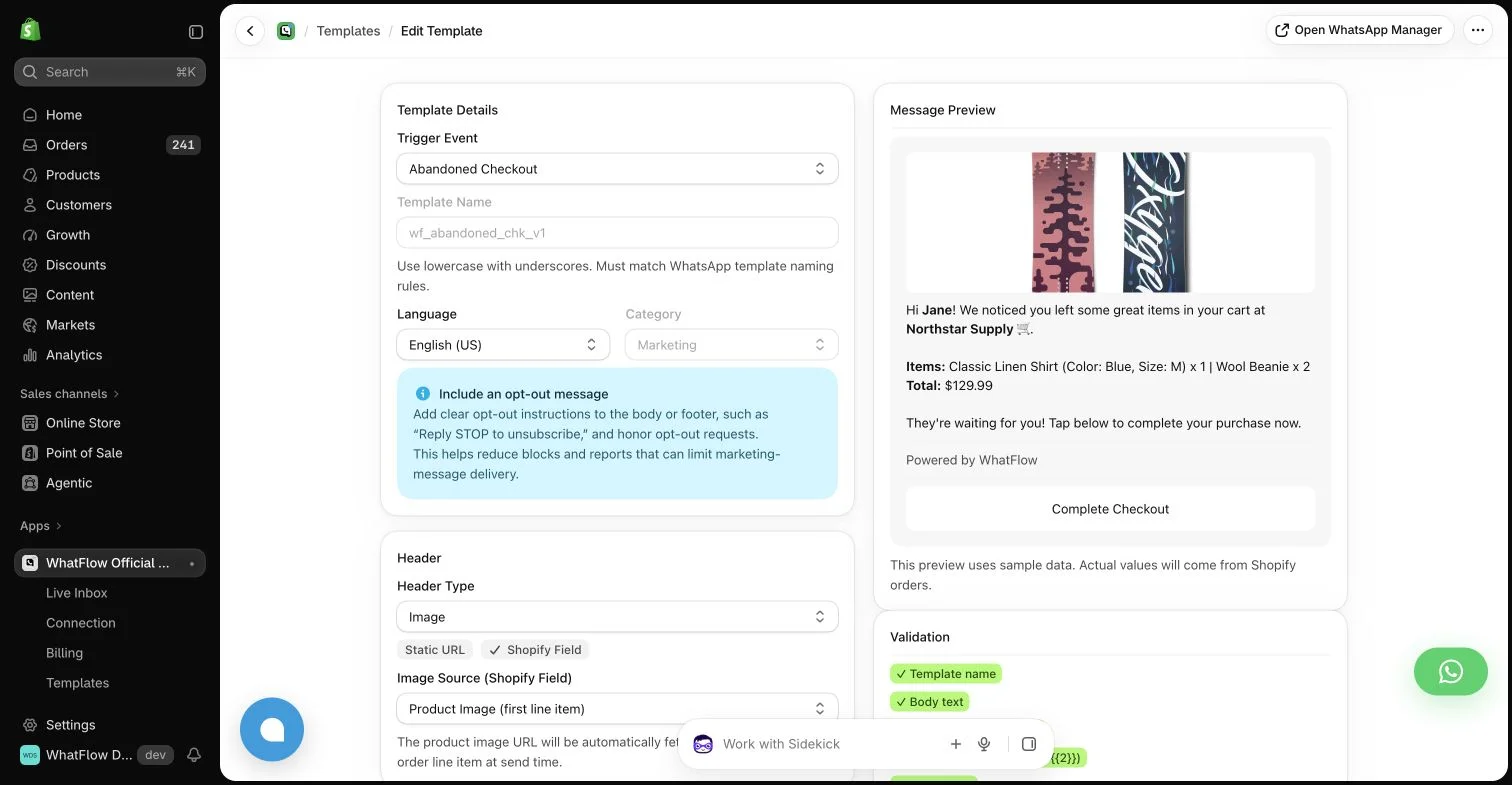
WhatFlow template editor in the demo store. Sample message data illustrates configuration, not a completed send or measured campaign outcome.
Ask one question at a time
A message asking about delivery, payment and product satisfaction cannot be answered reliably with three vague labels. Narrow the task. A support menu might offer Delivery, Returns and Ask a question, while an order confirmation flow needs choices tied to that specific decision.
Avoid labels such as Yes and No when the surrounding message contains several questions. The team should be able to interpret the reply later without reconstructing an ambiguous sentence. Keep the visible text clear enough to stand on its own within the conversation context.
Choose labels that describe the consequence
If tapping a button requests a callback, say that. If it only opens another set of choices, do not label it as a completed resolution. A button saying “Cancel order” can create a serious expectation if the workflow merely adds an internal review tag.
Match the label to the actual configured action and explain any human review step. Do not make a button look more powerful than the process behind it. The customer should understand whether they have made a request, received information or completed an operation.
WhatFlow’s interactive-button action supports up to three quick-reply choices. Use that small set deliberately rather than treating it as a place to compress the entire support catalog. The first menu should help the next step, not become a miniature navigation system.
If the customer needs a longer explanation, send a useful link or continue the conversation. Buttons are one message format among several. Free-form interactive messages also require the relevant active customer-service window; a convenient format does not remove WhatsApp’s channel requirements.
The Shopify Flow overview explains the workflow model; available actions still depend on supported installed connectors and their data.
Match the actual event values
When building a Flow condition, inspect the configured Button Text or Button Payload rather than copying an imagined universal identifier. The visible label and internal value can serve different purposes. Test the actual setup so the selected branch reflects the answer the customer chose.
A generic WhatsApp Button Clicked event should not be assumed to identify a Shopify order. Use the order-aware reply trigger when the next action needs order context, and verify that it resolves to the intended order. A person with several orders is an important controlled test case.
Handle repeats, late replies and typed questions
A customer may tap twice, reply to an older message or type a sentence instead. Define how those cases should behave. A repeated response should not create repeated business operations simply because the same event arrives again.
Keep the human conversation available when the response does not match. WhatFlow’s team inbox can help colleagues handle those exceptions without per-seat inbox charges on Business API plans. Avoid promising that every unrecognized answer is automatically assigned unless a supported configured action actually performs that assignment.
Read the message and labels with someone unfamiliar with the workflow. Ask what they believe each tap will do. Then test the actual trigger data and resulting action with controlled examples, keeping the workflow inactive while reviewing the configuration.
The best quick reply is not the one that produces the most taps. It is the one that captures a clear customer intention and leads to the outcome the message promised. Keep that relationship visible as the workflow becomes more sophisticated.
Test what each button promises to the customer
Imagine a fictional order-help message with choices “Track delivery,” “Request a change” and “Ask a question.” Write the expected consequence for each before building conditions. If requesting a change only starts a review, do not label the button “Change completed.” Confirm the message format fits the applicable customer-service context and inspect the actual event values rather than guessing internal identifiers from the labels.
For an order-specific branch, test a controlled customer with more than one order and confirm which order the supported trigger resolves. Tap twice, reply to an older message and type an unexpected question. Record whether any business action repeats or loses context, then adjust the configured process. WhatFlow’s inbox provides a route for colleagues to handle exceptions without seat fees, while your team still needs to decide who reads those cases and what to do when no choice matches.
Explore WhatFlow Business API for WhatsApp messaging and a team inbox with no seat fees. Features are included across plans, including Free; message allowances and rates differ.
Safwan Adnan is co-founder and CEO of WhatFlow. This guide is published by WhatFlow and includes its product where relevant. Worked examples are illustrative unless a caption identifies an actual demo-store configuration; they are not merchant performance results.
How many quick replies does WhatFlow’s interactive-button action support?
The current action supports up to three quick-reply choices. Choose labels around one clear decision.
Can any button event safely update an order?
Use a trigger that supplies the required order context, such as WhatsApp Order Reply, and test the association. A generic button event should not be treated as an identified order.