Evaluate a Shopify app connector by checking the exact trigger, the exact action and the fields required to join them. Confirm installed-app and plan requirements, then inspect missing, ambiguous and repeated-event cases. Verify the outcome in the destination system; an integration logo, plausible diagram or accepted request does not prove the workflow completed its intended task.
Key takeaways
Match connector fields by their meaning, not similar names.
Check the action’s actual effect and required inputs.
Observe the destination outcome and define who handles failures.
An integration logo is a starting point for investigation, not a complete workflow specification. One app may expose an incoming event while another exposes only a narrow action. The store still needs the right data to connect them and a clear rule for what happens when the data is missing.
Evaluate a connector using one real task. Describe the event, decision and outcome in ordinary language, then inspect the installed tools for the supported steps. This keeps the discussion focused on what the merchant can actually accomplish rather than the size of the integration directory.
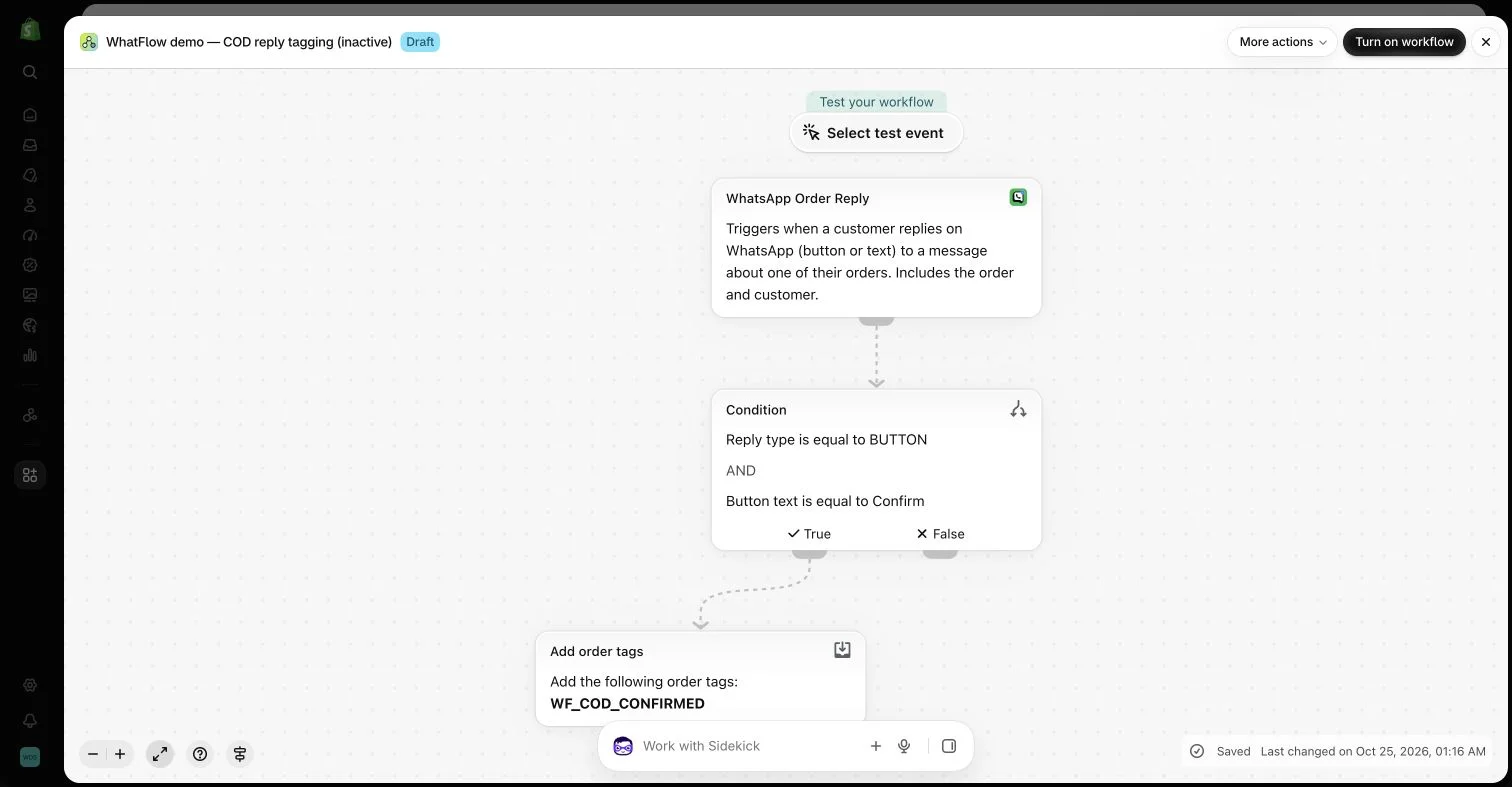
An inactive workflow in the WhatFlow demo store illustrates order-reply configuration. No customer messages or order changes were made.
Check the exact trigger
Find the event that represents the business moment you need. An order created, a fulfillment update and a customer reply contain different context. Choosing the wrong start can force later steps to guess information the workflow never received.
Inspect the actual fields exposed by the installed version. A phone number is not automatically a customer identifier for every other app. An event label that sounds order-related is not enough; confirm that the required order reference is supplied and points to the intended record.
Read what the action does and which inputs it requires. Creating a support ticket, adding a tag and sending a message are different outcomes. Do not label a branch as completed customer service if it merely created a record for someone to review later.
Verify plan requirements and any connection setup. A task can appear in documentation while requiring a particular app tier or additional authentication in the store. The minimum working setup should be clear before the team builds a process around it.
Map data rather than relying on similar names
Choose the actual variable required by the destination. Two fields called customer can represent different objects in different tools. A URL to a temporary attachment is not necessarily an acceptable permanent media input.
Test missing, duplicate and ambiguous records. A buyer with several orders is especially useful when the workflow changes order state or applies a tag. If the task cannot resolve the intended record, define a review path instead of selecting whichever match is easiest.
Keep platform constraints visible
A message action remains subject to its channel requirements. For WhatsApp, free-form formats and eligible approved templates have different use conditions. A Flow step does not remove those requirements or establish recipient permission automatically.
WhatFlow Business API provides incoming WhatsApp events and message actions that can participate in compatible Shopify Flow workflows. It does not mean every feature of every Shopify app is available or that no future configuration is required. Tight integration is useful precisely when the supported boundaries are understood.
Observe the result in the target system
A preview or accepted request is not the same as final execution, delivery or resolution. Use the platform’s testing tools appropriately and distinguish simulated logic from a real external action. Later controlled checks should inspect the actual destination outcome.
Record errors and decide who handles them. A workflow that silently leaves an uncertain result can cause duplicate sends or repeated operations when someone retries without context. Keep the recovery process as understandable as the positive path.
Name the workflow by its purpose and document the required apps, fields, owner and exception behavior. Review it when a connected app or product process changes. Historical integration announcements are useful context, but current installed behavior should drive the active setup.
WhatFlow’s all-feature Business API plans and no-seat-fee inbox can make a small team’s experimentation more approachable. The lasting value comes from a connector that completes a defined task with accurate data and a process another colleague can understand.
Build a small connector acceptance table
Hypothetical example: an incoming order-related reply should add a tag to the identified Shopify order. Create a table with the event field, destination input, expected tag and evidence of completion. Check that the order reference belongs to the intended order rather than selecting the customer’s latest order. A phone number alone cannot resolve every multi-order case.
Add rows for a missing reference, a repeated reply and a response that does not match the condition. Decide whether each stops or needs a person. Review the actual supported WhatFlow Business API event and Shopify Flow task rather than assuming a generic button event provides equivalent context. After a controlled check, inspect the target order and record the result separately from request acceptance.
Explore WhatFlow Business API for WhatsApp messaging and a team inbox with no seat fees. Features are included across plans, including Free; message allowances and rates differ.
Safwan Adnan is co-founder and CEO of WhatFlow. This guide is published by WhatFlow and includes its product where relevant. Worked examples are illustrative unless a caption identifies an actual demo-store configuration; they are not merchant performance results.